Why Your Card Might Be Declining at Checkout: Common Issues and Simple Solutions
Why Your Card Might Be Declining at Checkout? Here Are the Most Common Reasons and How to Fix Them If your payment didn’t go through during


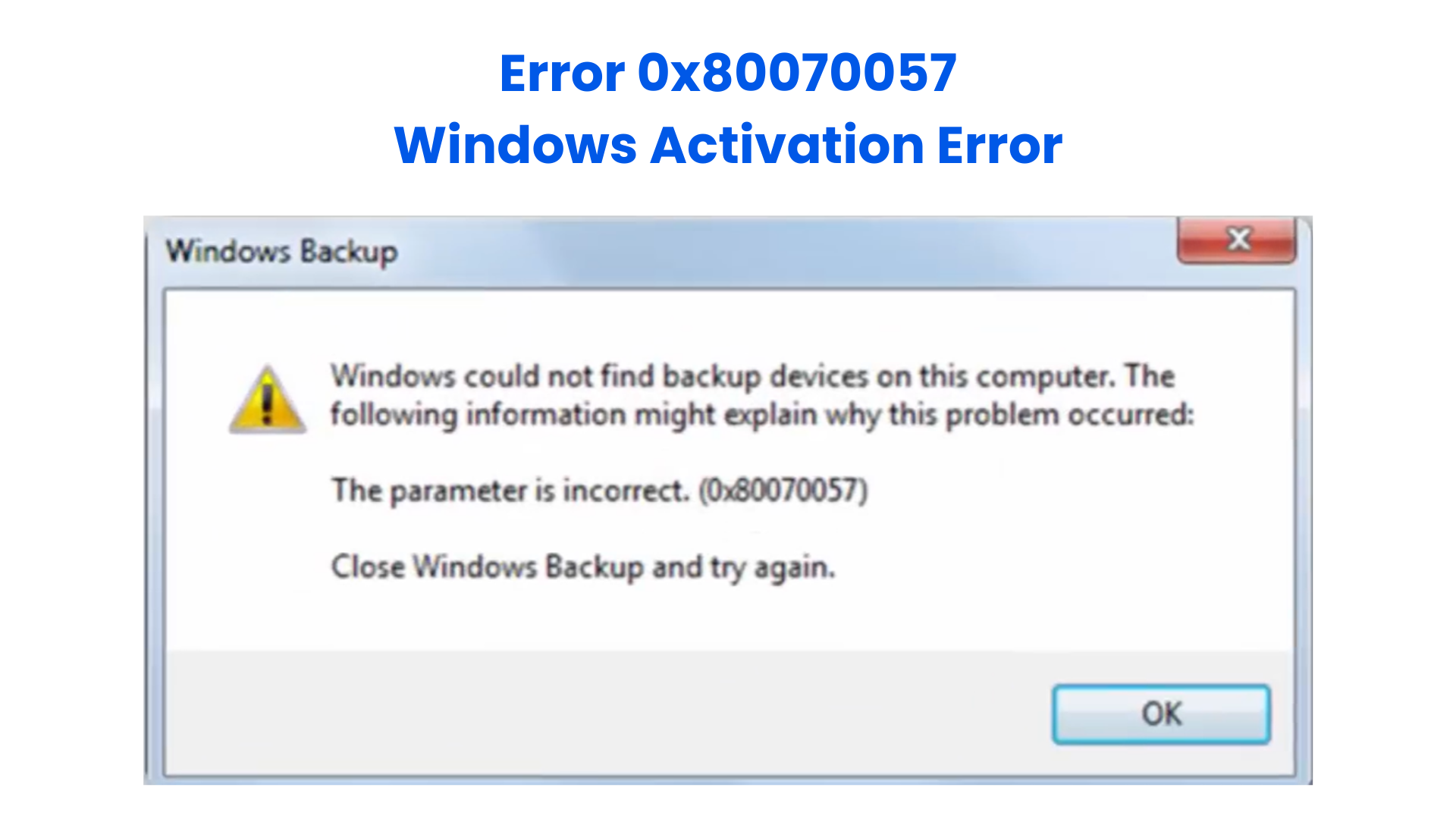
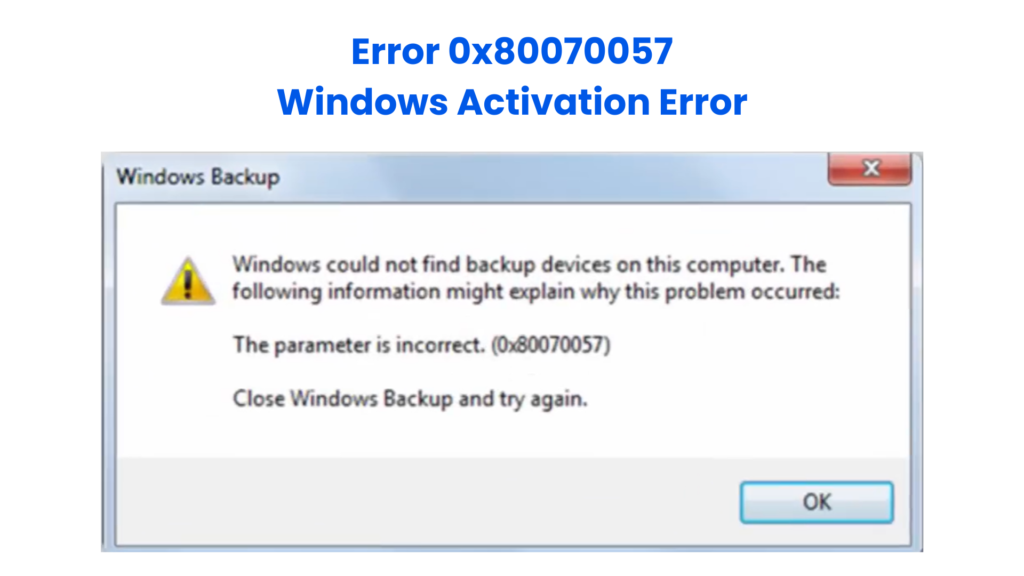
Error 0x80070057 is a common Windows error that many users encounter when performing system updates, backups, or even during file operations. The message usually appears as “The parameter is incorrect”, which can be confusing because it doesn’t clearly explain what went wrong.
This error often shows up during Windows Update, when trying to install updates, or while using system tools like backup and restore. It may also occur due to issues such as corrupted system files, incorrect registry settings, permission problems, antivirus interference, or conflicts with Windows services.
In many cases, users running non-genuine or improperly activated Windows versions experience this error more frequently due to broken update services and restricted permissions. Using a genuine Windows license from Uractivation helps ensure stable updates, proper system functionality, and fewer activation-related issues.
In this guide, you’ll learn the exact causes of Error 0x80070057 and how to fix it step by step using proven solutions.
Before fixing the issue, it’s important to understand what causes it:
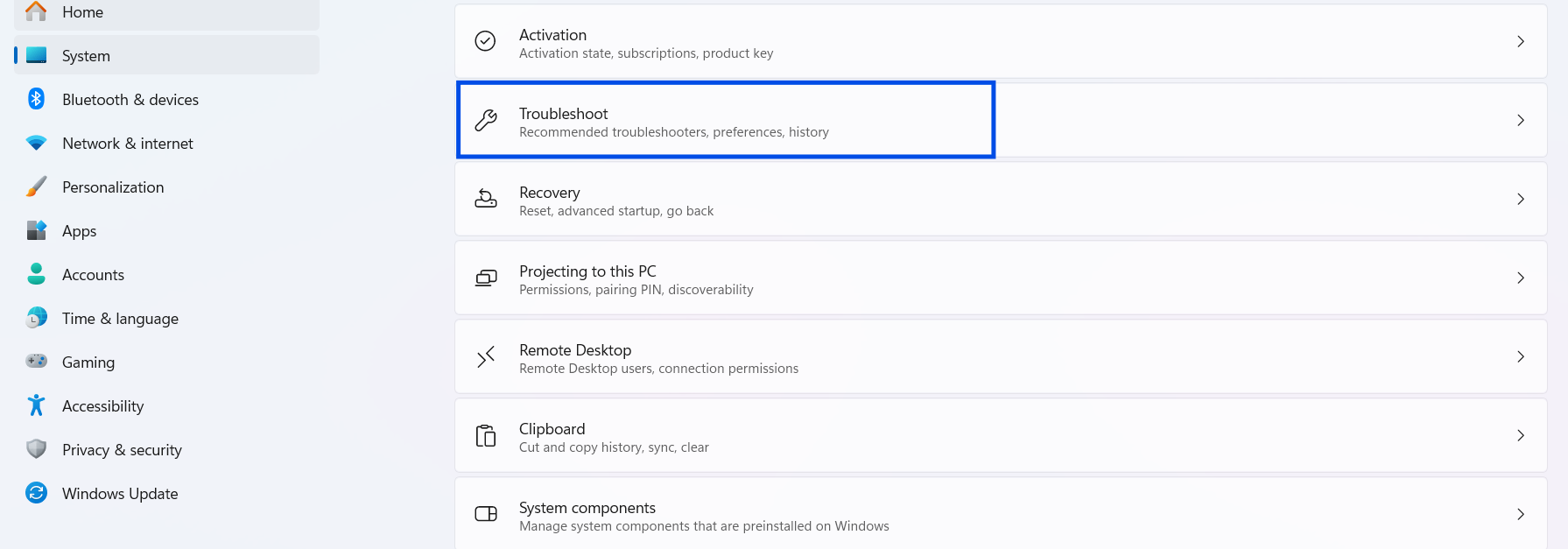
Windows includes a built-in troubleshooter that can automatically detect and fix update issues.
Steps:
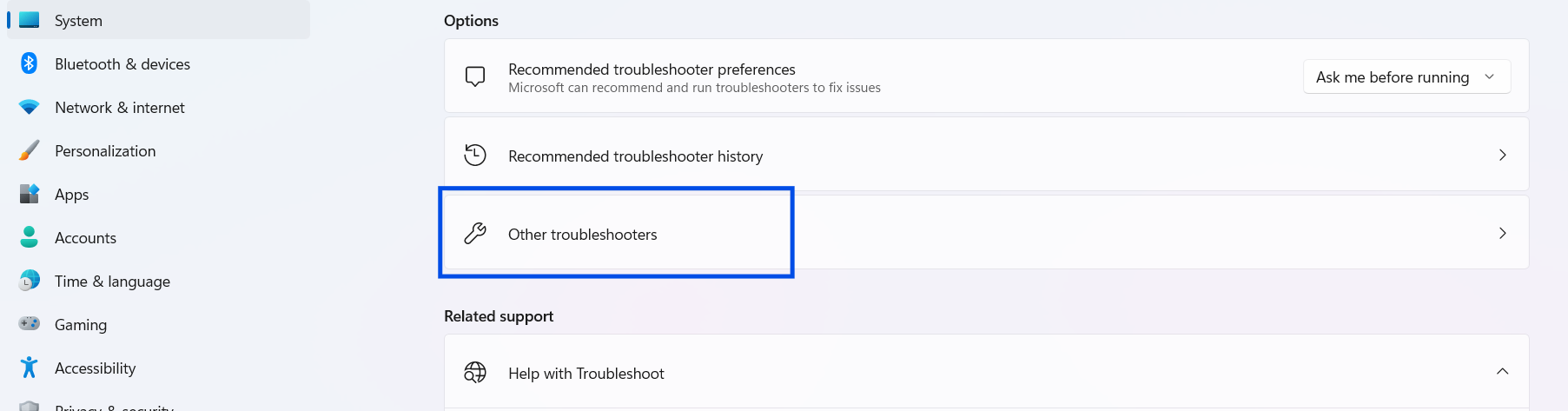
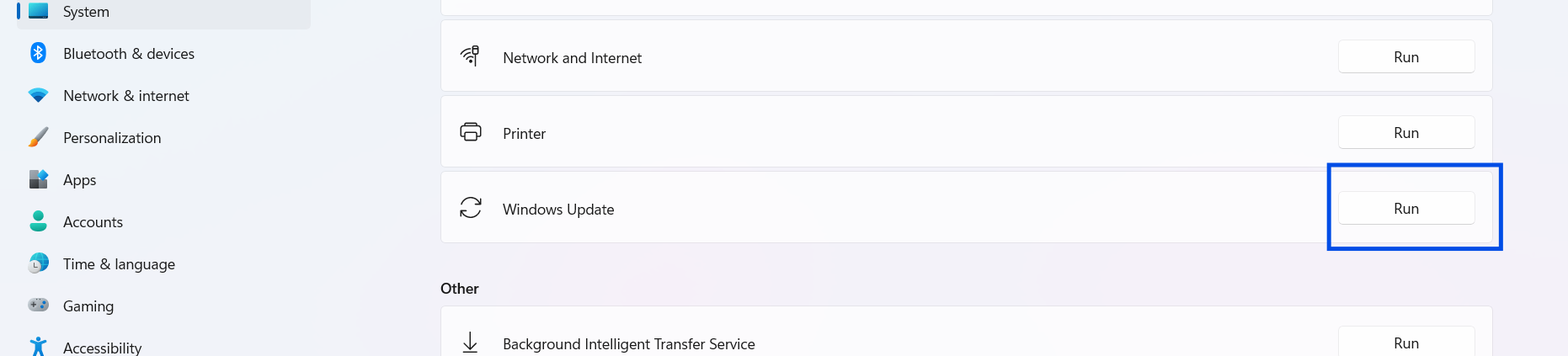
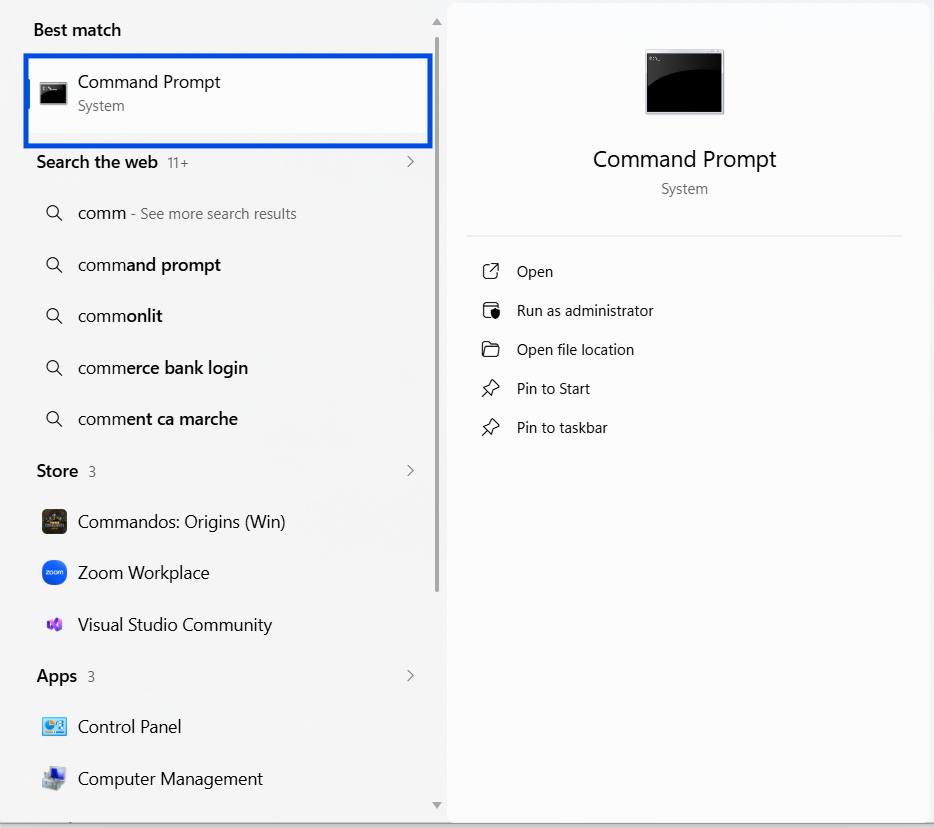
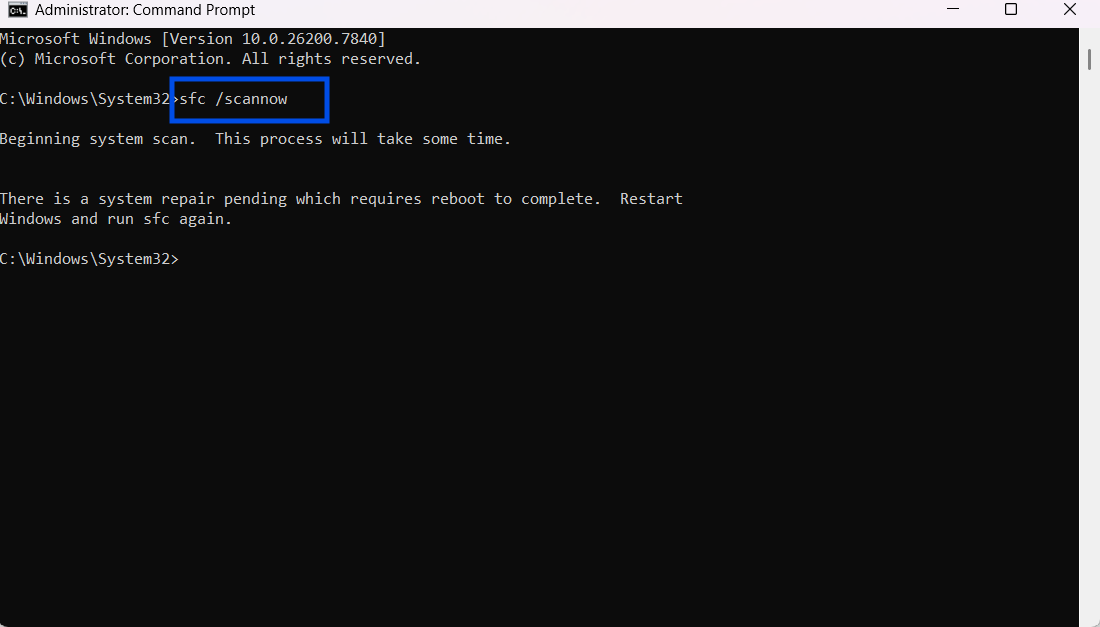
Corrupted system files are one of the main causes of this error.
Steps:
Then run:
DISM /Online /Cleanup-Image /RestoreHealth
Resetting Windows Update can fix broken update services.
Steps:
net stop wuauserv
net stop bits
net stop cryptSvc
net stop msiserver
ren C:WindowsSoftwareDistribution SoftwareDistribution.old
ren C:WindowsSystem32catroot2 catroot2.old
net start wuauserv
net start bits
net start cryptSvc
net start msiserver
This is a lesser-known fix but works in many cases.
Steps:
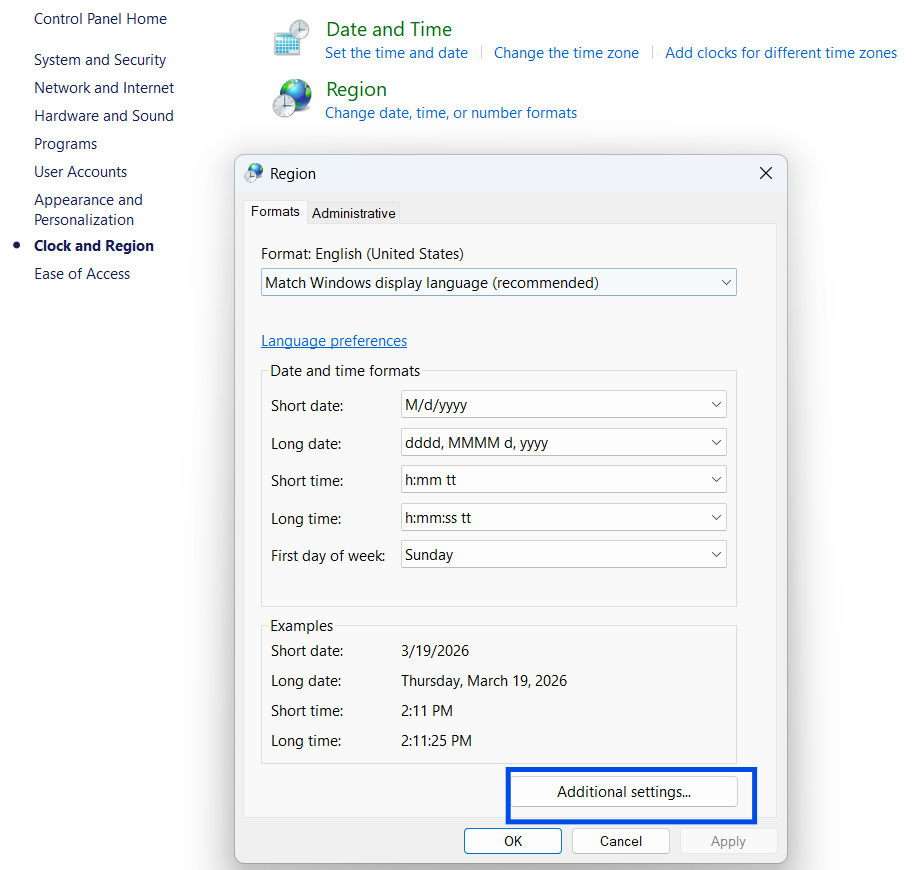
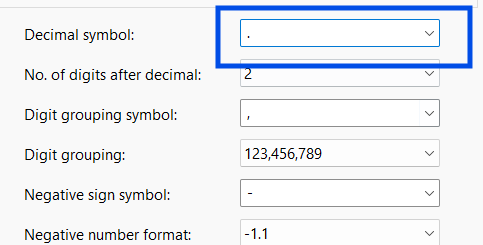
Some antivirus programs can block Windows updates or system processes.
Steps:
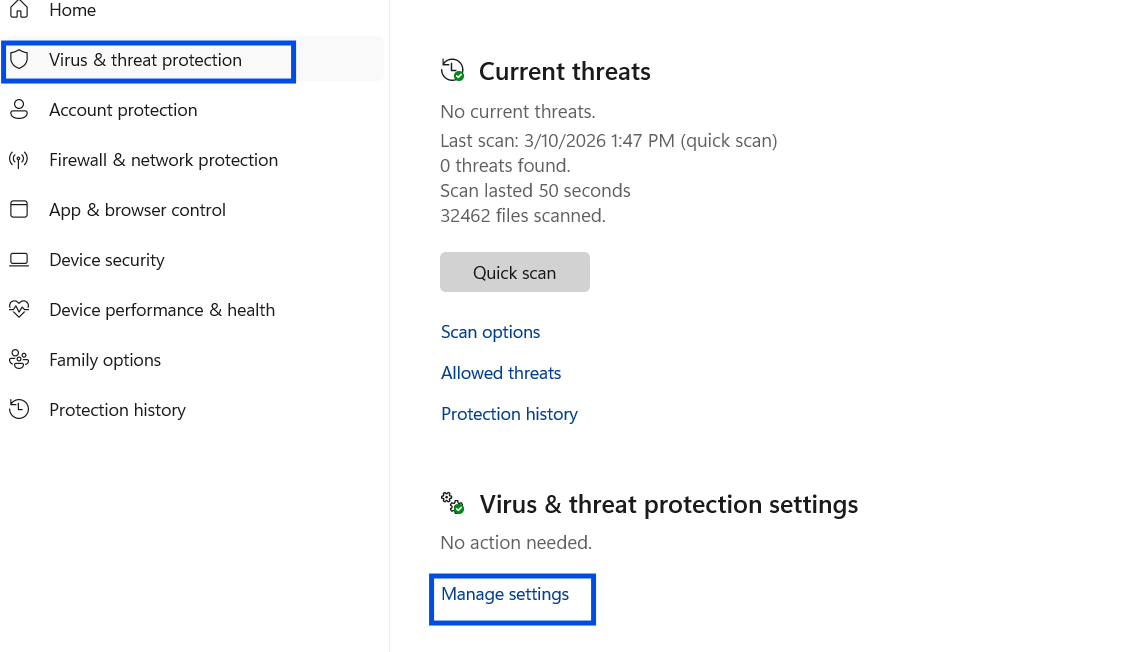
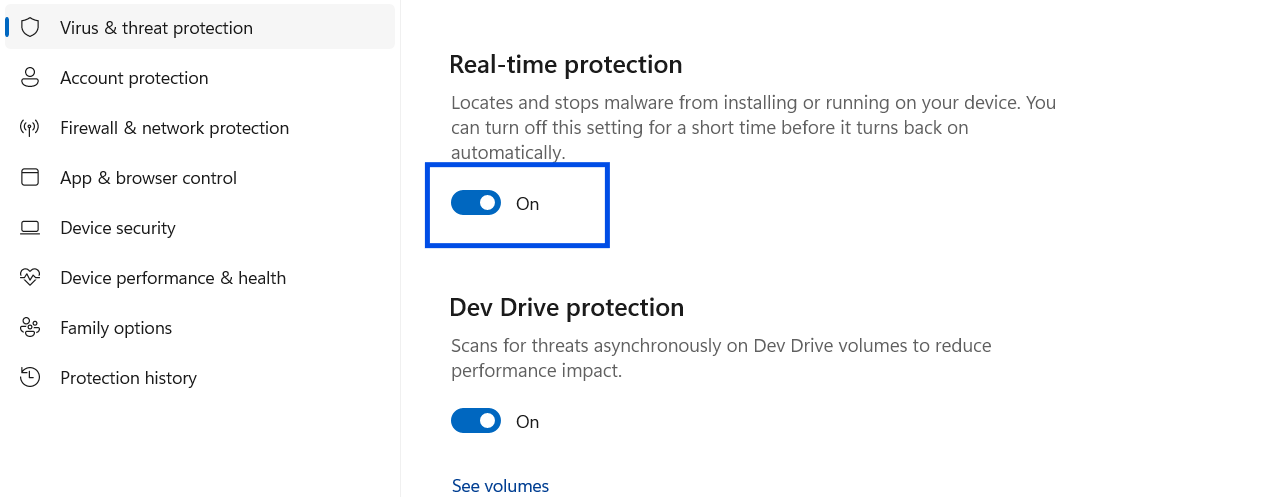
Using a genuine Windows license is essential for system stability and security.
With a genuine license from Uractivation, you get:
If you frequently encounter Windows activation or update errors, switching to a genuine license is one of the most reliable long-term solutions.
Error 0x80070057 can be frustrating, especially because of its vague message. However, in most cases, it can be fixed by:
By following these steps carefully, you can resolve the issue and restore your system’s normal functionality. For long-term stability and to avoid similar errors, always use a genuine Windows license from Uractivation.
Error 0x80070057 means “The parameter is incorrect”, usually caused by invalid system settings, corrupted files, or update issues.
No, it is not dangerous, but it can prevent important updates and system operations, which may affect performance and security over time.
Yes, using a genuine Windows license ensures proper updates, correct permissions, and reduces the chances of encountering such errors.
Yes, it commonly appears during Windows Update and can stop updates from installing correctly.
Why Your Card Might Be Declining at Checkout? Here Are the Most Common Reasons and How to Fix Them If your payment didn’t go through during
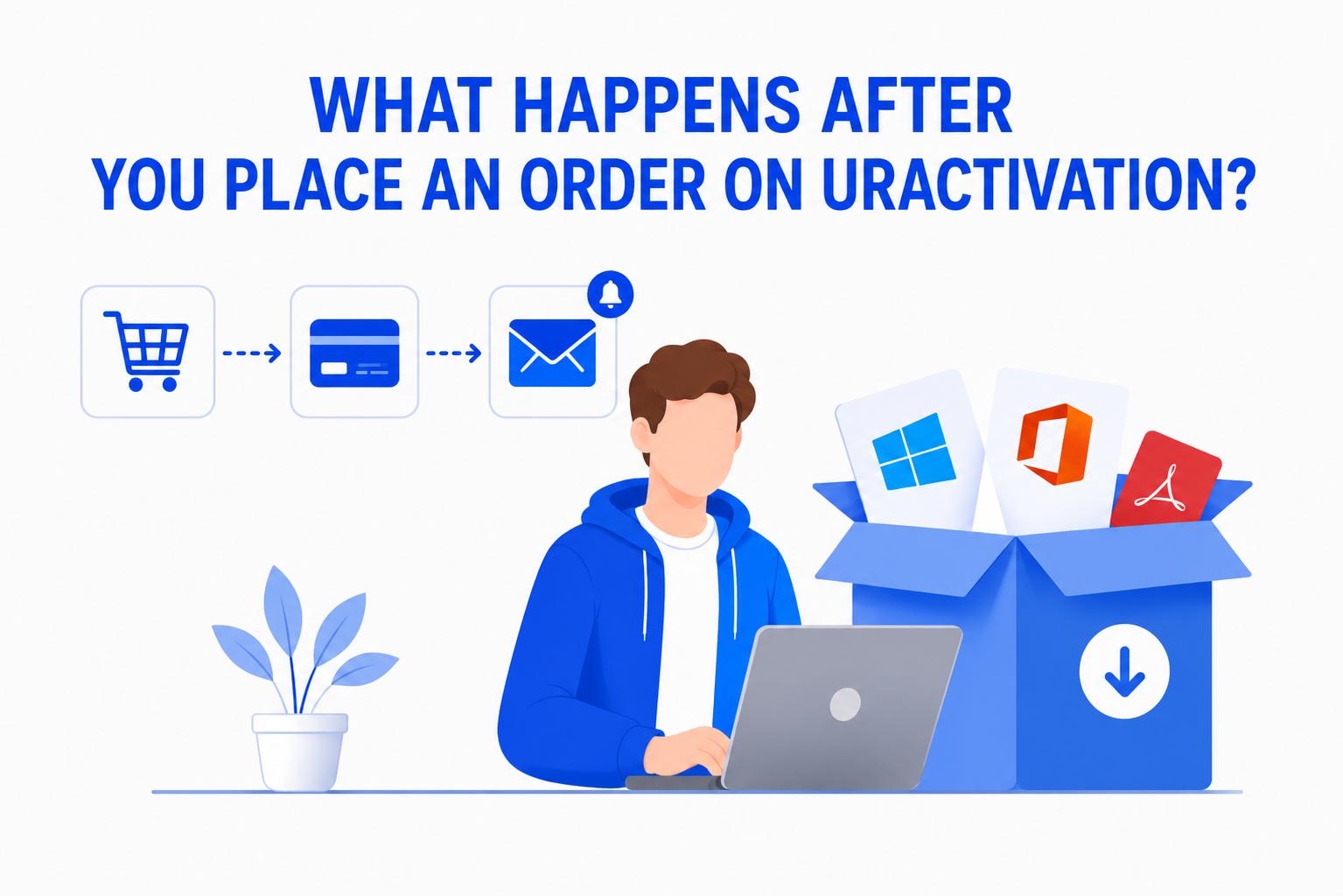
Buying software online should be simple and straightforward. If you’re wondering What Happens After You Place an Order on Uractivation?, this guide walks you through every