Microsoft Office Won’t Install on Windows 11? 9 Easy Fixes That Work in 2026
Trying to install Microsoft Office on Windows 11, but Microsoft Office Won’t Install on Windows 11, getting stuck, or showing an error message? This is a


In this guide, you will learn how to completely remove Adobe Files from Windows & Mac using the recommended uninstall process, Adobe’s official cleanup utility where appropriate, and carefully selected manual cleanup steps.
Whether you want to uninstall Adobe Photoshop, Illustrator, Premiere Pro, Acrobat, or other Adobe applications, follow the instructions for your operating system below.
Important: Back up important projects, presets, plug-ins, and custom settings before starting. You do not need to delete every Adobe-related folder to uninstall an application successfully.
Before deleting leftover files, uninstall the Adobe applications you no longer need. This helps remove the main application files through the supported process.
If you manage your applications through Adobe Creative Cloud desktop, you can also open Creative Cloud, locate the application, select its menu, and choose Uninstall.
If Creative Cloud is unavailable, consult Adobe’s instructions for the specific application before manually removing its files.
Image 1: Uninstalling an Adobe application
Suggested image: A clear screenshot of the Windows Installed apps page showing an Adobe application and its Uninstall option. For a Mac-focused article, use a separate screenshot of the application menu in Creative Cloud.
If standard uninstallation does not resolve an installation error, a damaged Creative Cloud installation, or another persistent problem, Adobe provides the Creative Cloud Cleaner Tool for supported cleanup scenarios.
Download the utility directly from Adobe:
Official Adobe Cleaner Tool guide:
https://helpx.adobe.com/creative-cloud/kb/cc-cleaner-tool-installation-problems.html
Always download the tool from Adobe’s official website rather than an unknown third-party download page.
The available options may vary depending on the tool version and operating system. Do not assume that a single selection removes all Adobe components from the computer.
Important: The Cleaner Tool is a troubleshooting utility, not a substitute for understanding which files and products you need to retain. Back up important files first and follow Adobe’s current instructions.
Image 2: Adobe Creative Cloud Cleaner Tool
Suggested image: A genuine screenshot of Adobe’s official Cleaner Tool download page or its actual interface. Do not use a fabricated interface or label an unofficial download as an Adobe product.
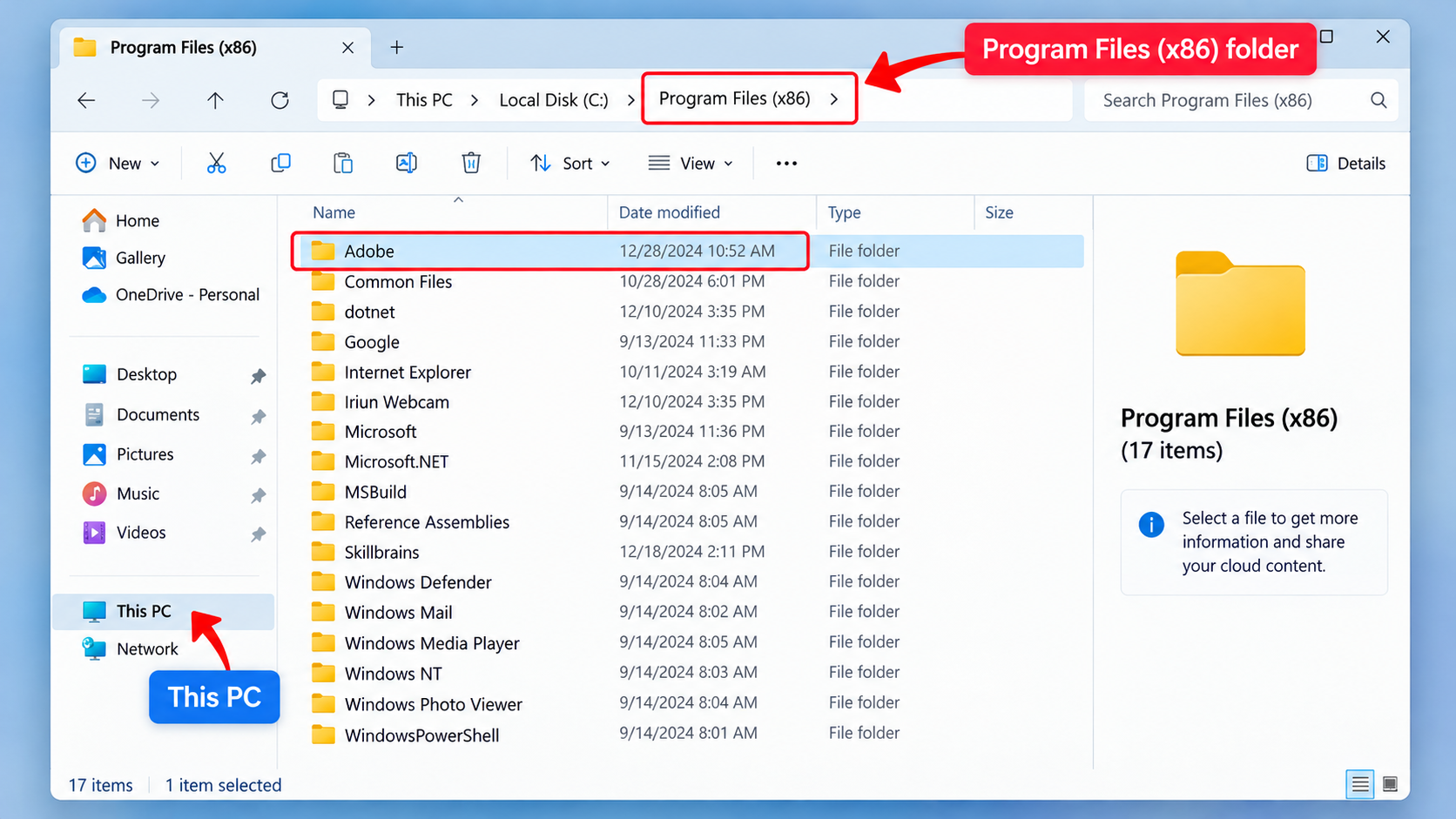
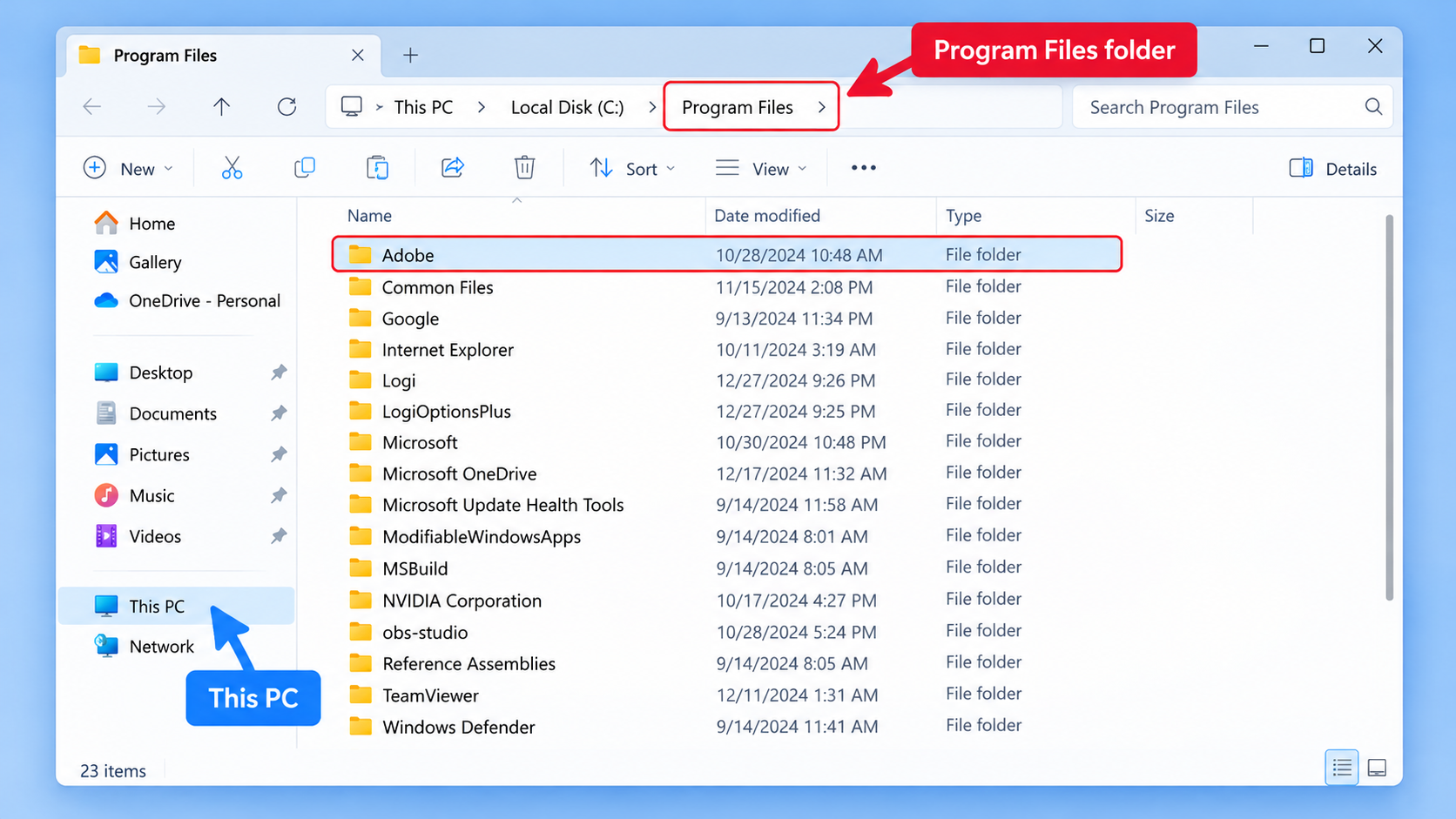
If Adobe files remain after uninstalling the relevant applications, you can check common installation and data locations. Proceed carefully: these folders may contain shared components, settings, or files used by other installed Adobe applications.
C:\Program Files\AdobeC:\Program Files (x86)\AdobeC:\Program Files\Common Files\AdobeC:\Program Files (x86)\Common Files\AdobeDo not delete an entire Adobe or Common Files folder simply because it exists. Shared components may be required by other Adobe applications.
B. Check the Roaming AppData Folder
The Roaming AppData folder may contain Adobe preferences and user-specific settings.
%appdata% and press Enter.Removing this data may reset preferences, workspaces, presets, or other custom settings.
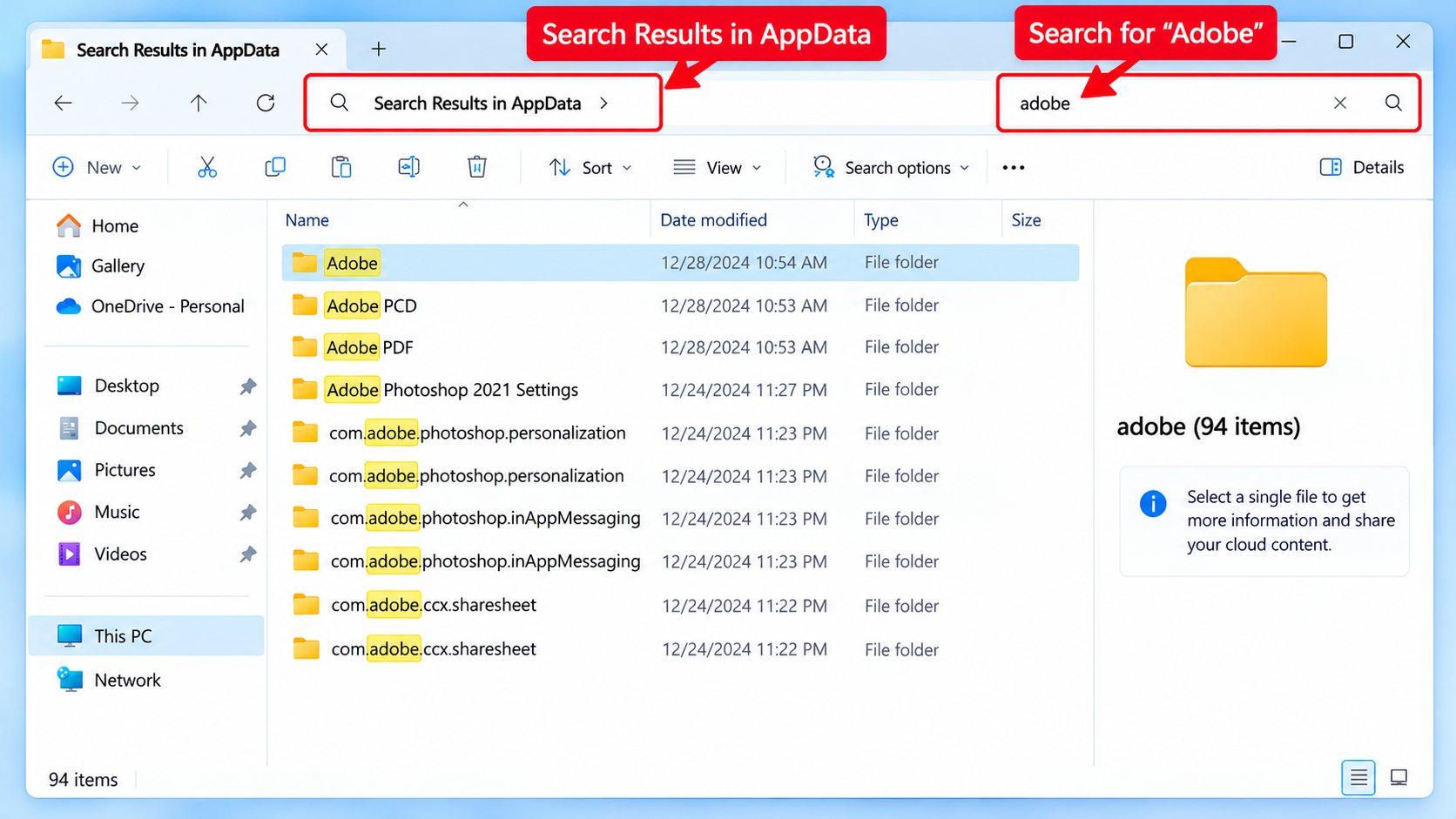
%localappdata% and press Enter.Some folders may contain caches, logs, or temporary data. Others may support an installed application, so avoid deleting everything indiscriminately.
C:\ProgramData.ProgramData may contain information shared by multiple users or applications. Do not delete the entire Adobe folder if other Adobe products remain installed.
Image 3: Checking Adobe folders in Windows File Explorer
Suggested image: A clean, readable screenshot showing the File Explorer address bar and the relevant Adobe directory. Use arrows to identify the location being discussed, but do not mark folders for deletion unless their removal is appropriate.
macOS stores application files and user preferences in several locations. The exact locations depend on the Adobe application and how it was installed.
Avoid deleting shared Adobe components or the entire Adobe folder if you still use other Adobe applications.
The User Library may contain application preferences, caches, and support files.
~/Library/.~/Library/Application Support/Adobe/~/Library/Preferences/~/Library/Caches/Not every file in these locations is safe to delete. Some may be used by other Adobe products or contain custom settings.
Some Adobe components may be stored in system-wide locations, such as:
/Library/Application Support/Adobe//Library/Preferences/Only investigate these locations when troubleshooting requires it. Changes may affect all users of the Mac, and some components may be shared by installed applications.
Do not delete system-wide Adobe folders indiscriminately or use Terminal commands copied from unverified sources.
After completing the necessary cleanup:
Suggested image: A macOS Finder screenshot showing the Go to Folder dialog with ~/Library/Application Support/Adobe/ entered. Use a genuine screenshot and make the folder path readable.
The Windows Registry stores configuration information used by Windows and installed applications. Some Adobe applications create registry entries during installation.
However, manually deleting Adobe registry keys is not a recommended routine step for uninstalling Adobe software.
Incorrect changes can affect installed applications, preferences, licensing components, or other software.
If Adobe’s official cleanup process has not resolved a specific problem:
If you are unsure which entries are safe to remove, leave them unchanged and contact Adobe Support or a qualified technician.
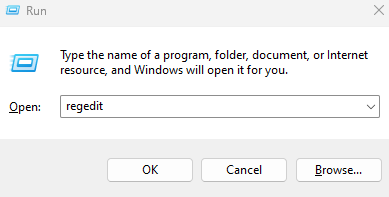
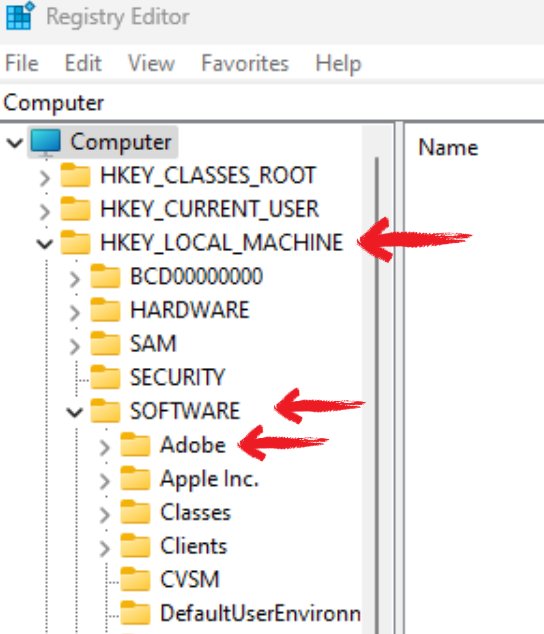
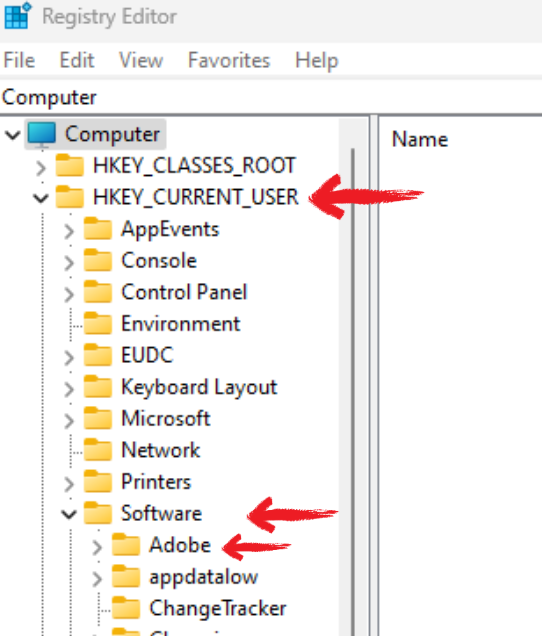
Suggested image: If a screenshot is necessary, show Registry Editor as an illustration of the advanced troubleshooting environment. Clearly label it as an advanced area and do not use arrows that encourage users to delete entire registry keys.
Once you have completed the appropriate uninstall and cleanup steps, restart your computer and verify the result.
Use this checklist:
If you plan to reinstall Adobe software, use the official Adobe website or Creative Cloud desktop application to obtain the appropriate installer.
Not necessarily. An uninstaller may leave preferences, settings, caches, or other data behind. However, those files are not automatically harmful, and removing every Adobe-related item is not always necessary.
Only if you have confirmed that the folder contains files belonging to applications you have uninstalled and that no other installed Adobe product depends on them. Avoid deleting shared folders indiscriminately.
Only when you have identified the files as unnecessary leftovers. AppData may contain preferences, presets, and settings that you want to preserve.
Adobe provides the Cleaner Tool for specific cleanup and troubleshooting situations. Download it from Adobe’s official website, read the instructions, back up important data, and select only the appropriate cleanup options.
Some files can be removed manually, but manually deleting program folders is not a reliable replacement for the supported uninstall process. Use the normal uninstaller first and follow Adobe’s guidance for any remaining issue.
The general principles apply, but Acrobat may have its own uninstall and troubleshooting instructions. Follow the documentation for your specific Acrobat version instead of assuming that every Creative Cloud cleanup instruction applies to it.
Completely removing Adobe files requires more than deleting folders at random. The safest approach is to uninstall the relevant application first, use Adobe’s official Cleaner Tool when appropriate, and check leftover files only when necessary.
Whether you are troubleshooting Adobe installation errors, preparing for a fresh installation, or removing an application you no longer use, taking these steps carefully can help prevent unnecessary data loss and avoid affecting other installed software.
For persistent problems, consult Adobe’s official support resources before making advanced changes to system folders or the Windows Registry.
For more software guides and troubleshooting tips, visit Uractivation.
Trying to install Microsoft Office on Windows 11, but Microsoft Office Won’t Install on Windows 11, getting stuck, or showing an error message? This is a

Why Your Card Might Be Declining at Checkout? Here Are the Most Common Reasons and How to Fix Them If your payment didn’t go through during