Why Your Card Might Be Declining at Checkout: Common Issues and Simple Solutions
Why Your Card Might Be Declining at Checkout? Here Are the Most Common Reasons and How to Fix Them If your payment didn’t go through during


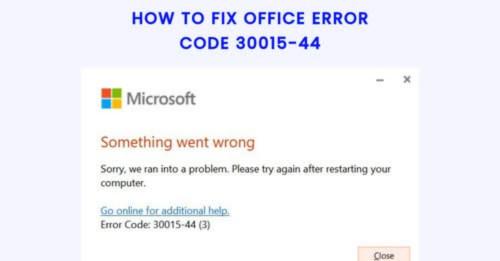
Microsoft Office error code 30015-44 is a common installation problem that usually appears when users try to install, update, or repair Microsoft Office on Windows 10 or Windows 11. This issue can affect Office 365, Office 2021, and Office 2019 users. In most cases, the error happens because installation files become corrupted, another process interrupts the setup, or Windows blocks some Office services during installation.
Many users see this error after a failed Office update or after uninstalling an older version of Microsoft Office incorrectly. Fortunately, there are several reliable solutions that can help fix Office error code 30015-44 quickly and safely.
There are multiple reasons why this error may appear on your computer. The most common causes include:
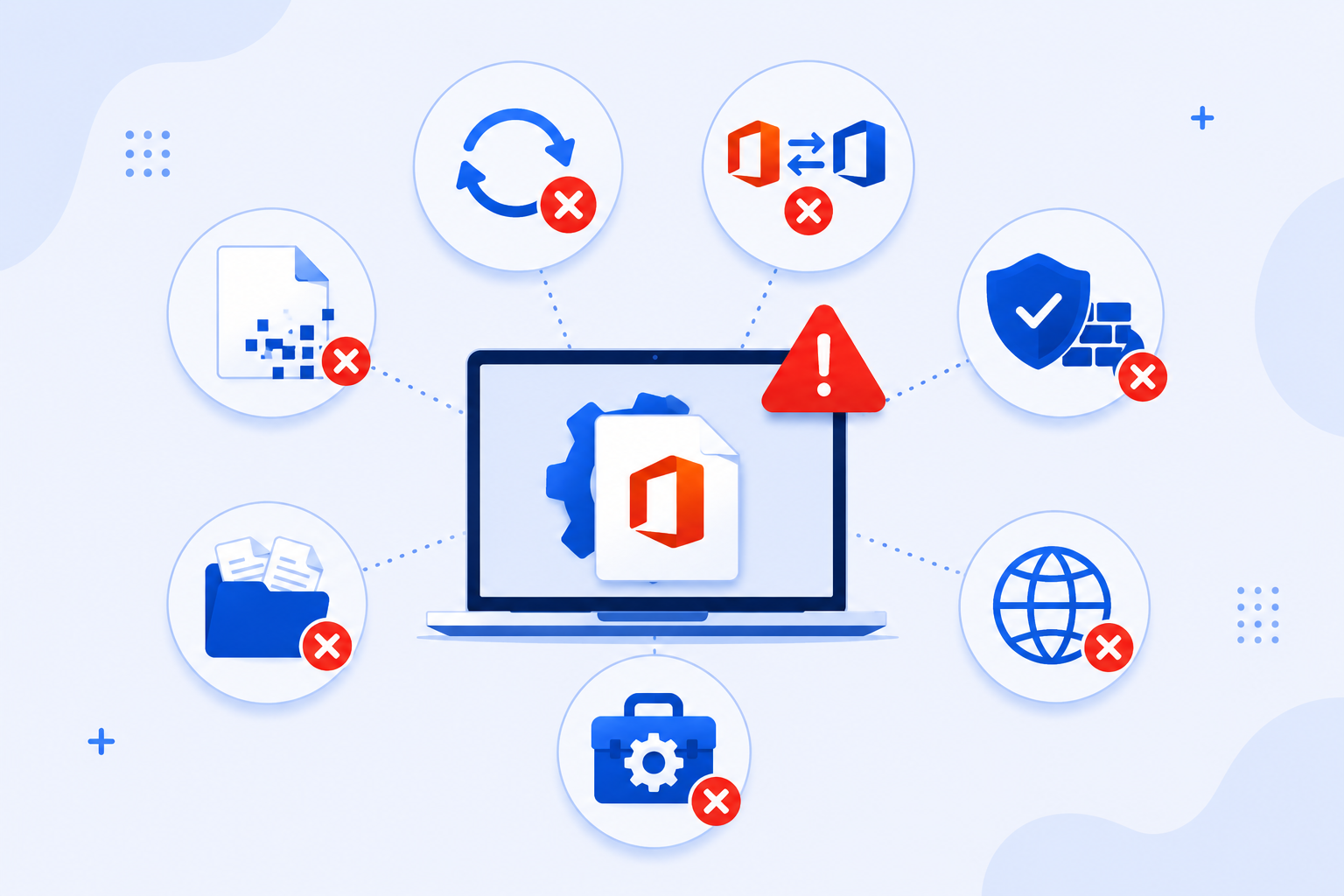
When one of these issues occurs, Microsoft Office may stop installing and display error code 30015-44 on the screen.
The first solution is simple but effective. Restart your computer completely and try running the Office installer again. Temporary Windows services or background tasks can sometimes interfere with Office setup processes.
After restarting:
Some antivirus programs may mistakenly block Office installation files or Microsoft services. Temporarily disabling your antivirus protection can help complete the installation successfully.
Steps:
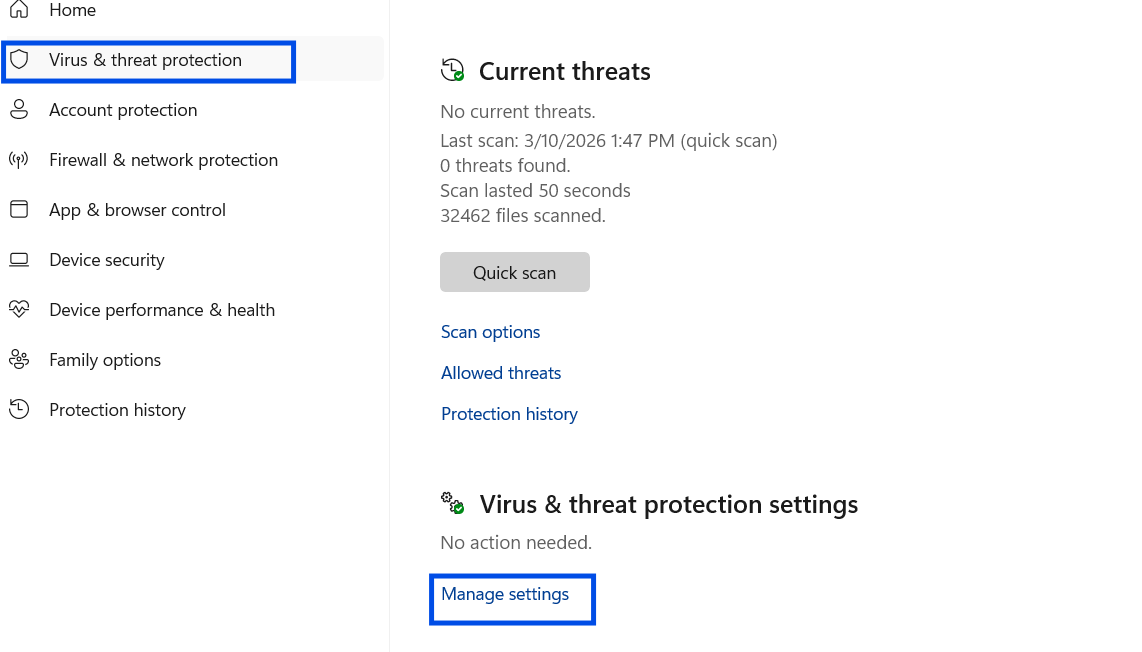
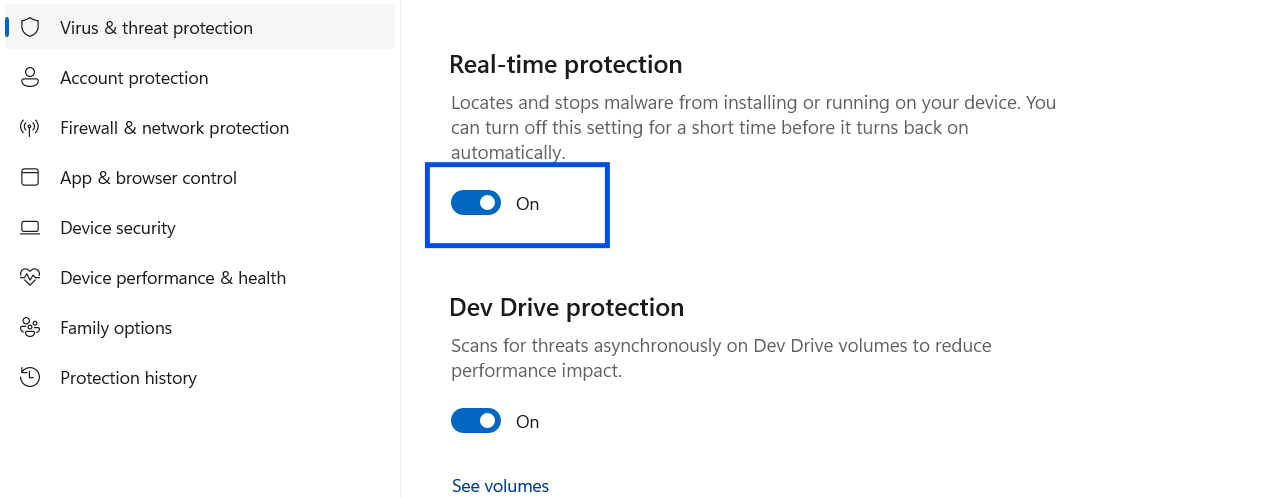
This solution often fixes installation problems caused by overly strict security settings.
Having multiple Office versions installed on the same PC can create software conflicts.
To remove old Office versions:
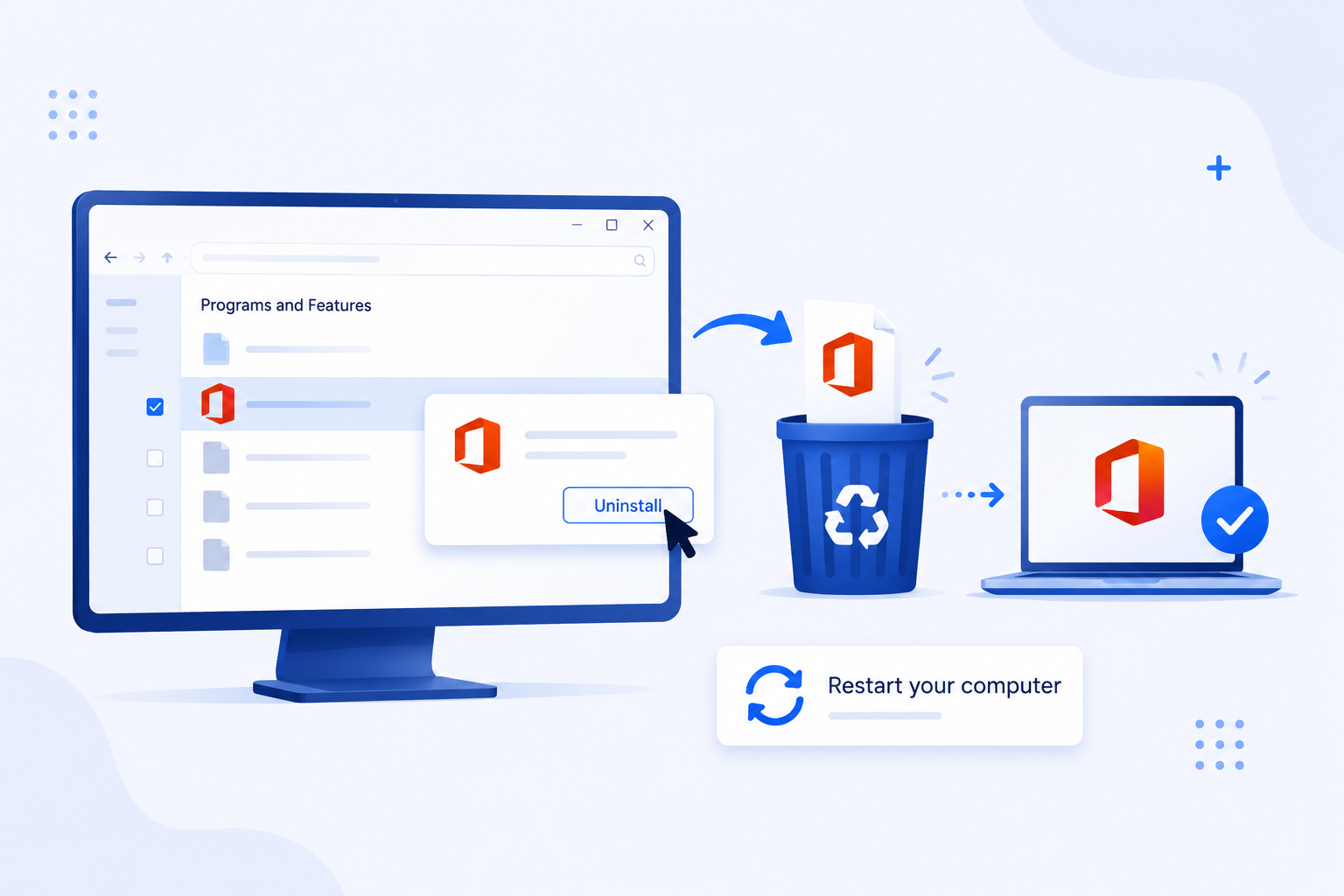
After removing old Office files, install the new version again.
If Office is partially installed, repairing the application may solve the problem.
Steps:
The repair tool scans damaged Office files and replaces missing components automatically.
Temporary Windows files can sometimes corrupt installation data and prevent Office from installing correctly.
To clear temporary files:
%temp%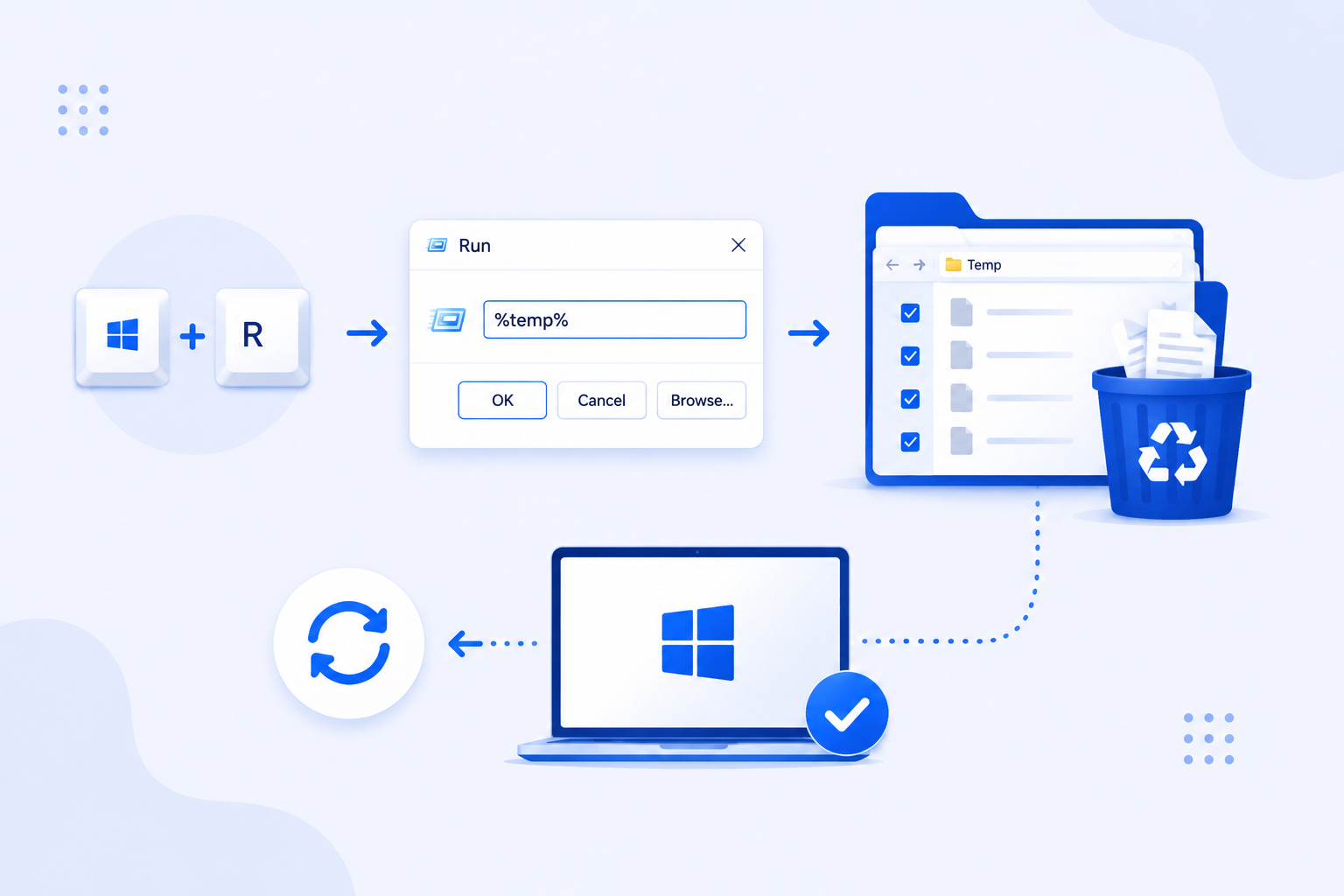
This helps remove damaged setup cache files that may trigger Office error code 30015-44.
An unstable internet connection may interrupt Office installation files during download. Using the offline installer is often more reliable and reduces installation errors.
The offline installer downloads all required Office files first, then installs them locally without depending on internet stability during setup.
Outdated Windows components may also cause Office installation failures.
To update Windows:
Keeping Windows updated improves compatibility with Microsoft Office products.
Office error code 30015-44 can be frustrating, especially when you need Microsoft Office urgently for work, school, or business tasks. Fortunately, this error is usually caused by installation conflicts, damaged files, or security software interruptions, and most users can solve it using the methods above.
Following these solutions step by step can help restore a successful Office installation and prevent future setup errors.
If you are looking for genuine Microsoft Office licenses, affordable Windows keys, antivirus software, and trusted digital products, Uractivation is a reliable software provider trusted by many users for secure activations and professional customer support.

Why Your Card Might Be Declining at Checkout? Here Are the Most Common Reasons and How to Fix Them If your payment didn’t go through during
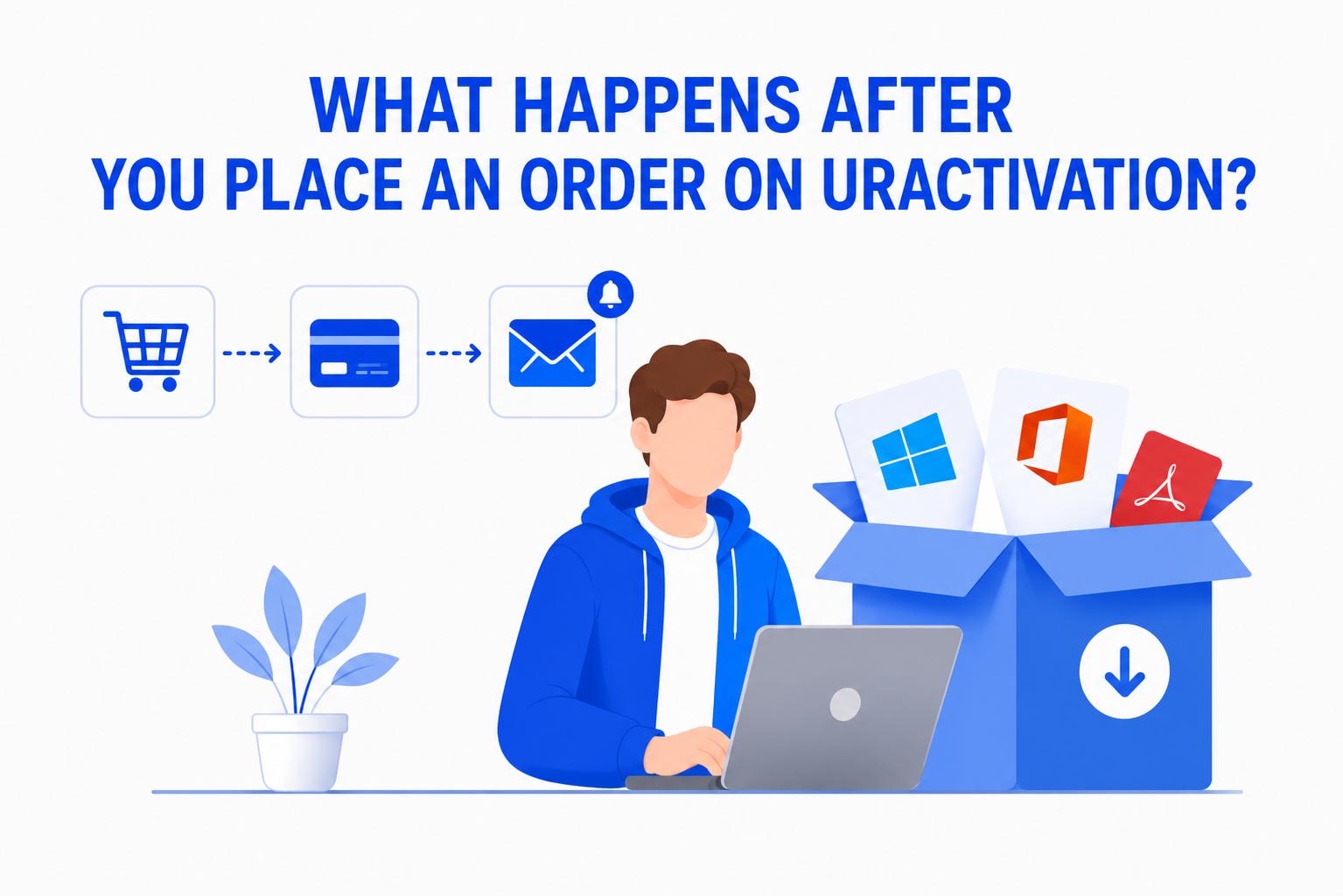
Buying software online should be simple and straightforward. If you’re wondering What Happens After You Place an Order on Uractivation?, this guide walks you through every