How to Completely Remove Adobe Files from Windows & Mac (Step-by-Step Guide)
In this guide, you will learn how to completely remove Adobe Files from Windows & Mac using the recommended uninstall process, Adobe’s official cleanup utility where


Trying to install Microsoft Office on Windows 11, but Microsoft Office Won’t Install on Windows 11, getting stuck, or showing an error message?
This is a common problem and can happen for several reasons, including an older Office installation, conflicting versions, limited storage, network problems, or security software interfering with the installer.
The good news is that most Office installation problems can be fixed without resetting your PC.
In this guide, we’ll walk you through 9 practical ways to fix Microsoft Office installation problems on Windows 11.
Before trying advanced solutions, it helps to understand what may be causing the problem.
Common causes include:
Microsoft also notes that different Office installation technologies, such as Click-to-Run and Windows Installer (MSI), cannot be used for the same Office products on the same computer.
It sounds simple, but restarting Windows should be your first step.
Temporary installation processes can remain active in the background and prevent Office from starting a new installation.
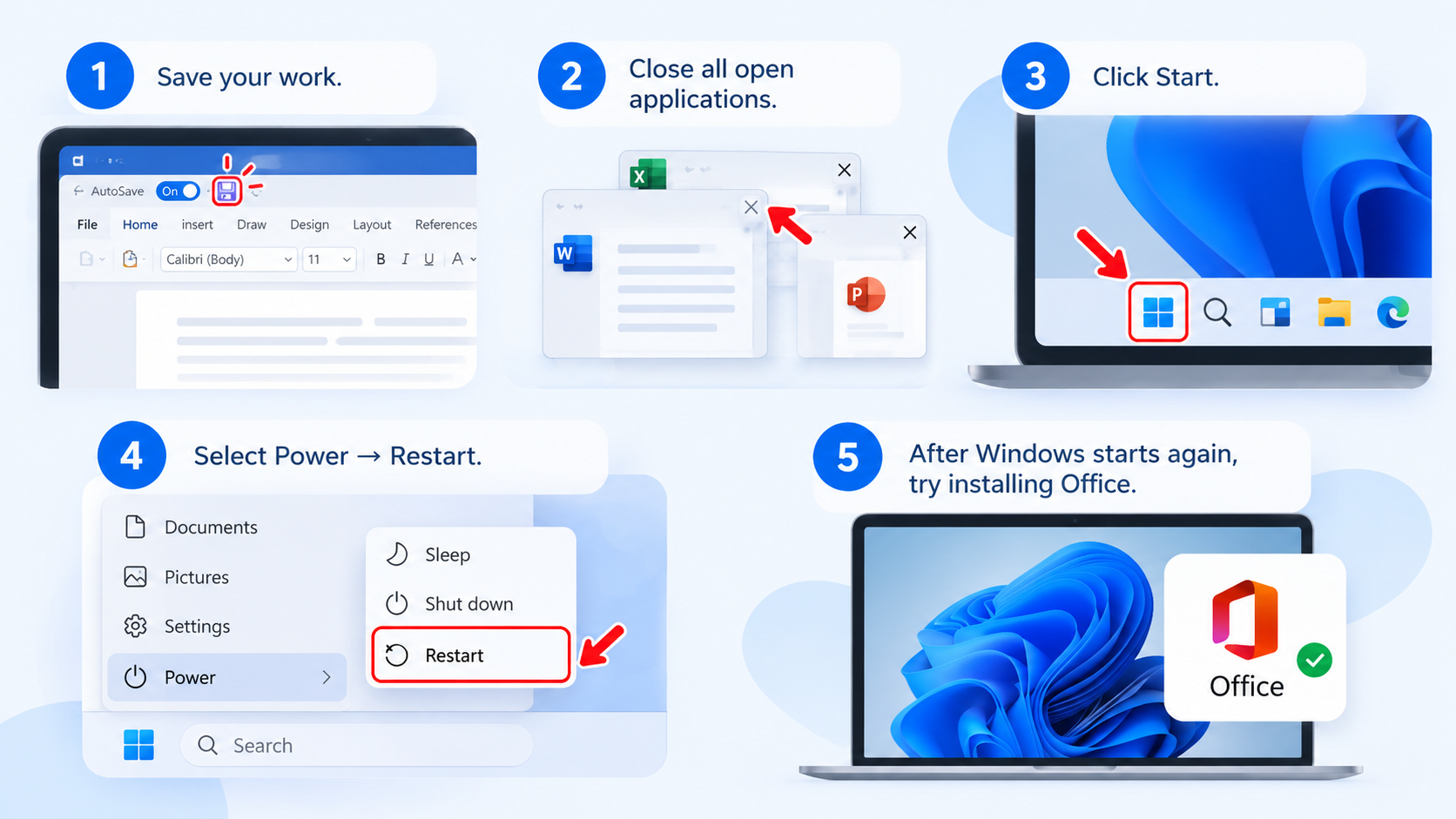
If the installation still fails, continue with the next solution.
Having an existing Office installation can prevent a new version from installing correctly.
If you no longer need the existing version, uninstall it before trying the new installation.
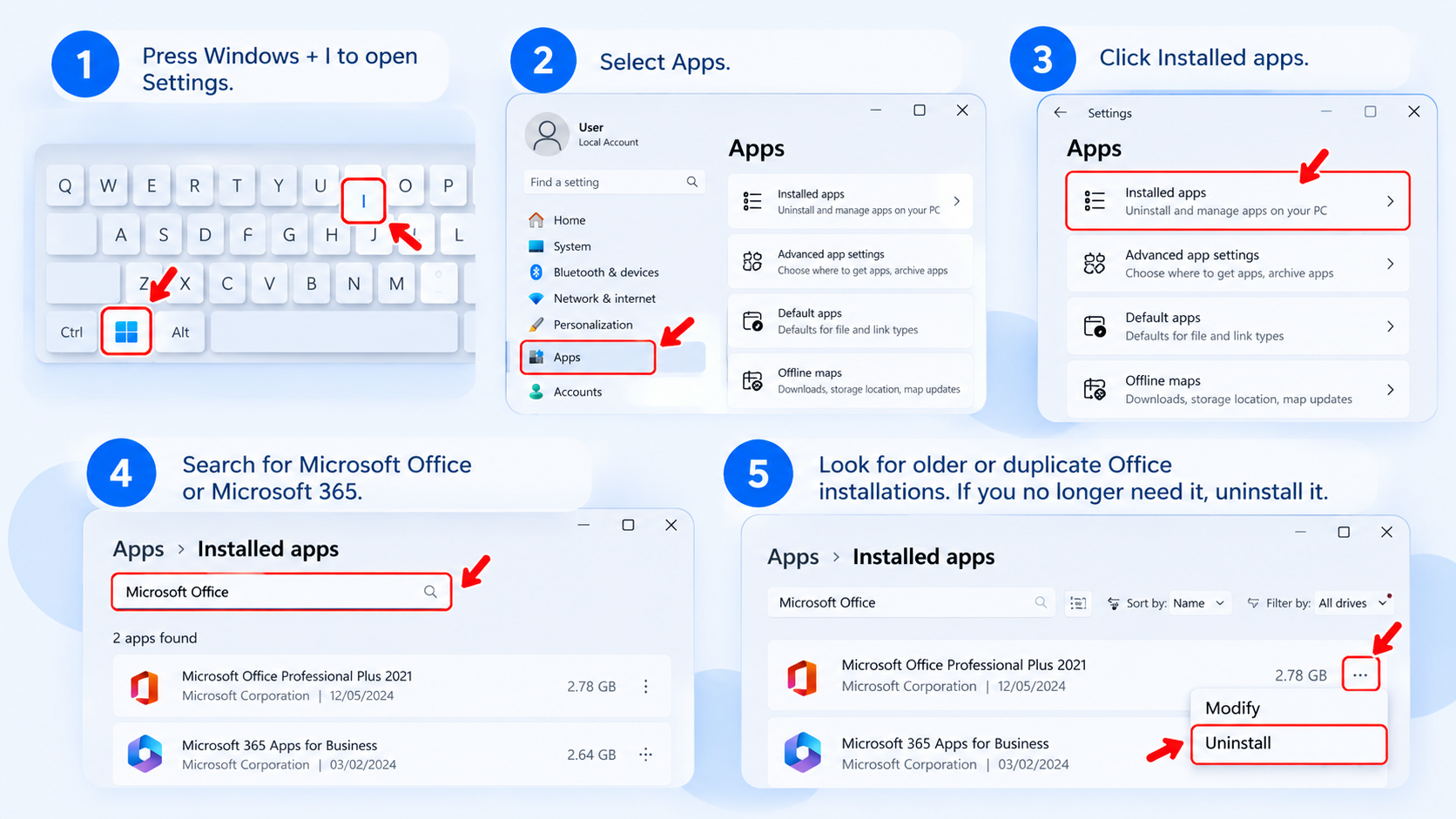
Important: If you have important Office files or settings, make sure your documents are saved before uninstalling anything.
Sometimes Office appears to be installed, but the previous installation is incomplete or corrupted.
In this situation, simply running the installer again may not work.
Microsoft provides troubleshooting tools for removing Microsoft 365 and supported Office installations. Microsoft notes that the uninstall troubleshooter requires Windows 10 or later, although its current support page also notes limitations for Office 2024.
After removing the problematic installation:
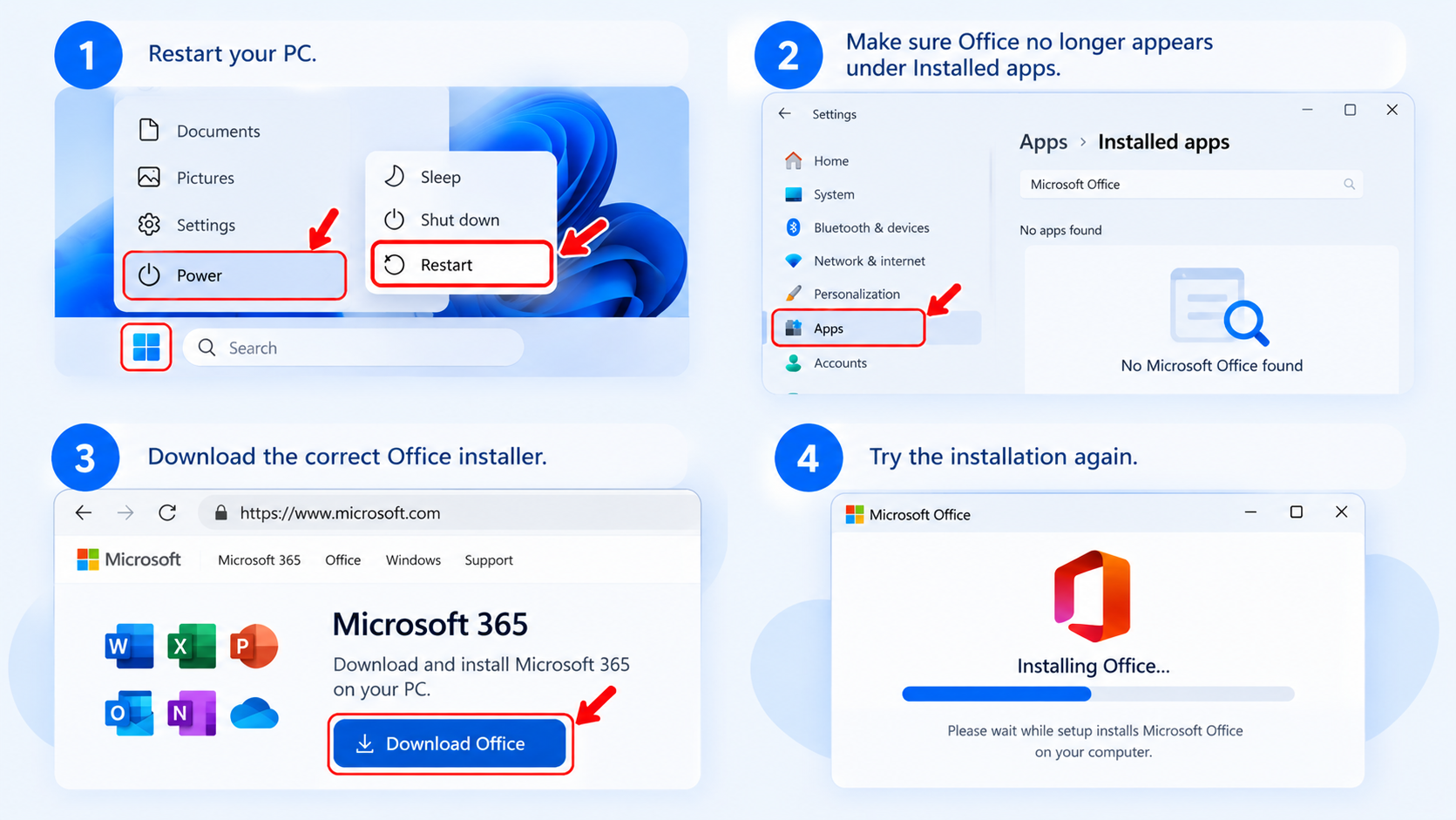
An Office installation needs available disk space for the installer and application files.
If your system drive is almost full, installation may fail or stop unexpectedly.
If storage is low, remove unnecessary temporary files, large downloads, or applications you no longer use.
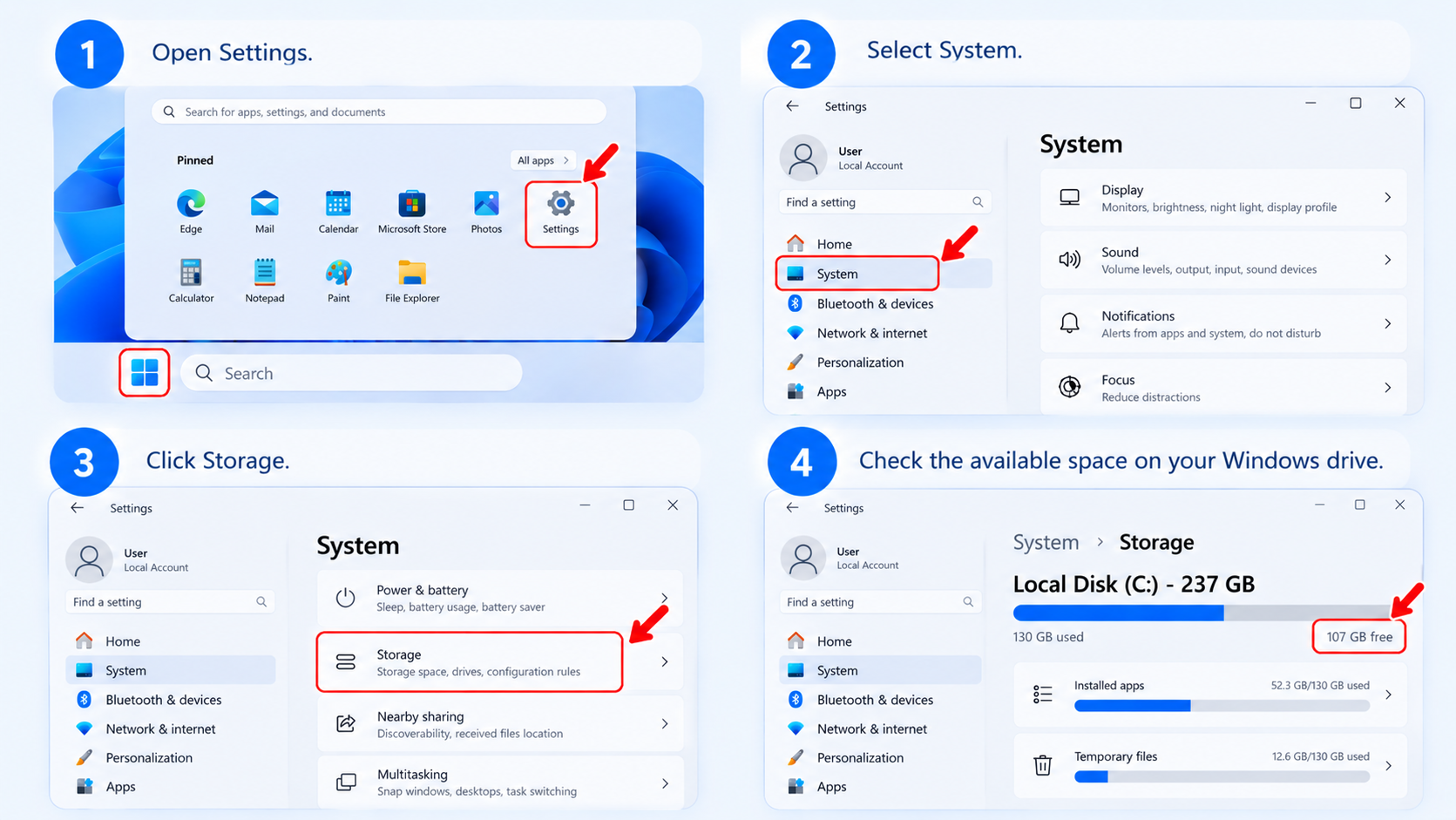
Some Office installation errors are specifically associated with limited disk space or network problems.
Most Office installations require an internet connection to download the necessary installation files.
A weak or unstable connection can interrupt the process.
Try these simple steps:
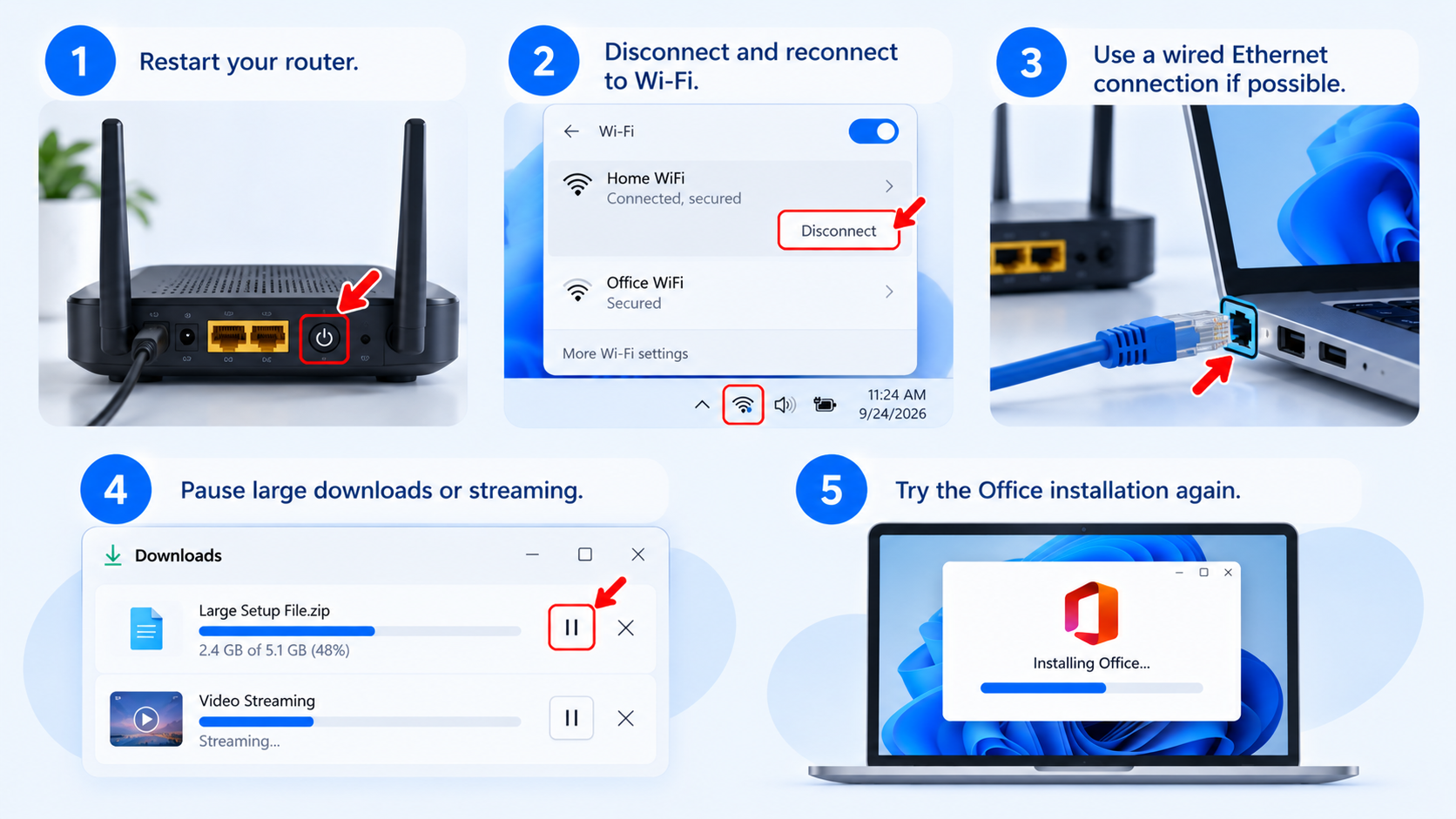
Microsoft specifically recommends trying a wired connection when network problems interfere with Office installation.
An outdated Windows installation can sometimes cause compatibility or installation problems.
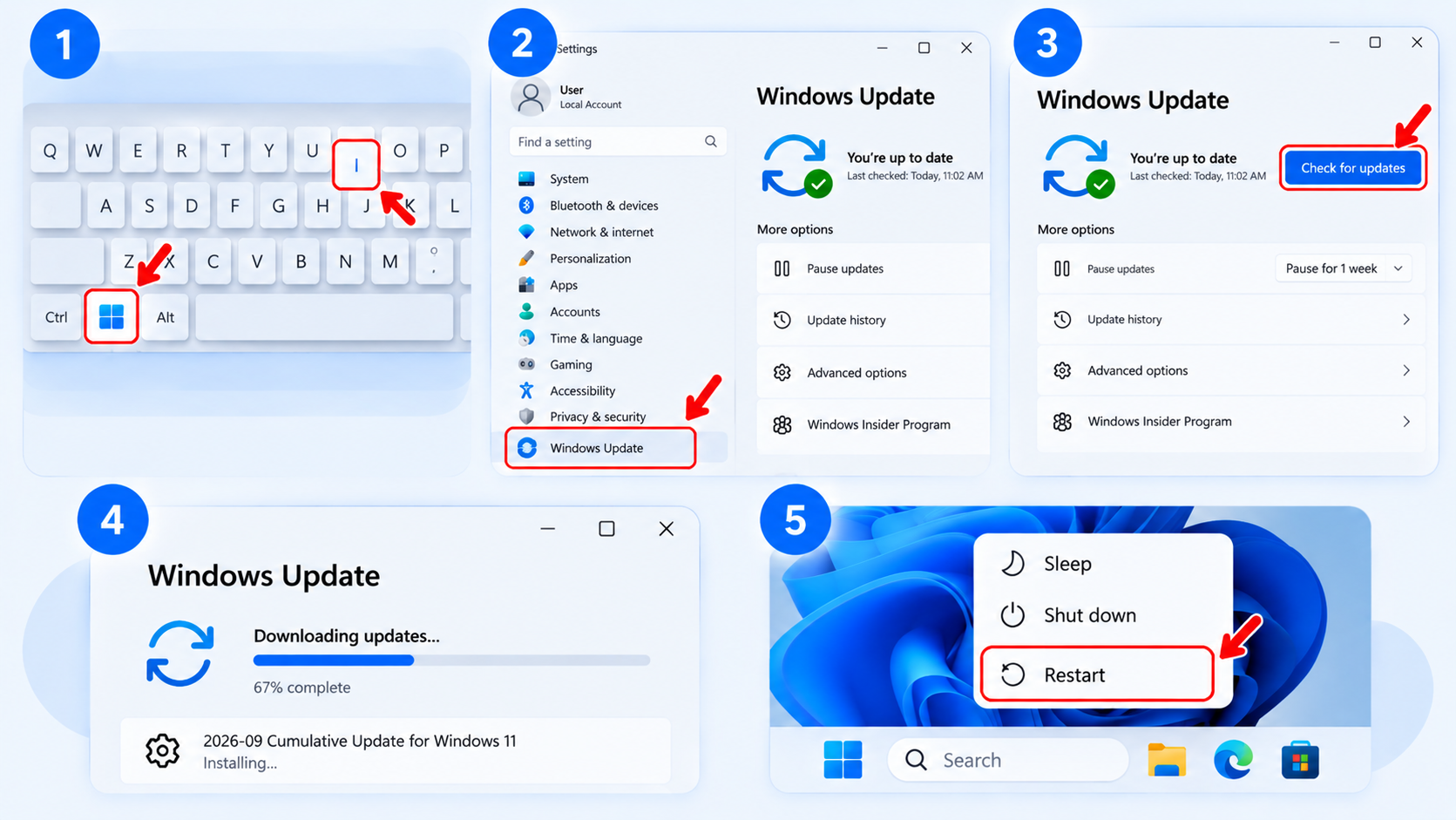
After Windows has finished updating, try installing Office again.
Security software can sometimes interfere with Office installation by blocking network connections or installation processes.
Microsoft identifies antivirus software, firewall settings, proxy configurations, and internet connectivity as possible causes of certain Office installation errors.
If you use third-party security software, check its settings before attempting the installation again.
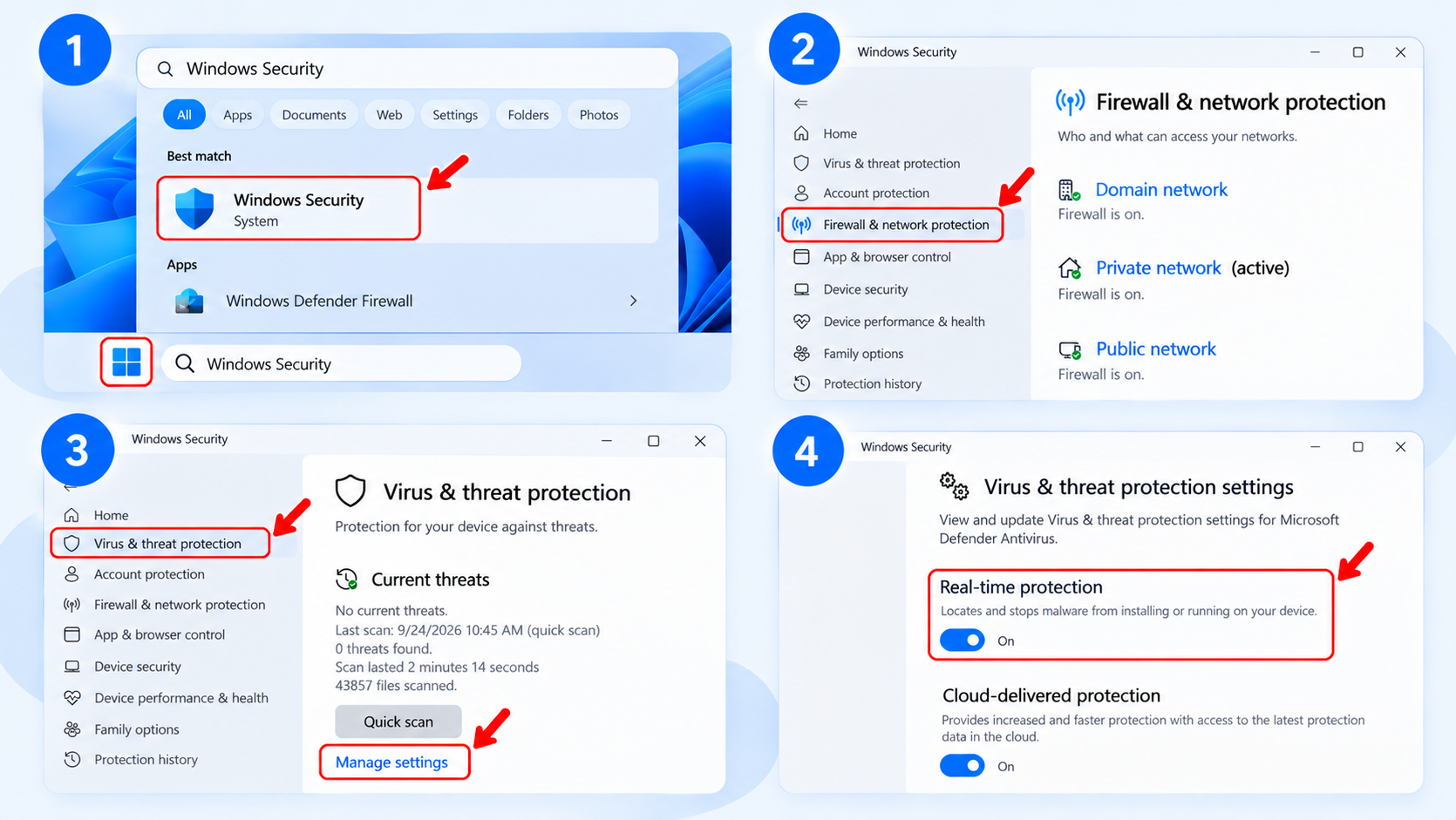
Do not leave your computer unprotected unnecessarily. If you temporarily change a security setting for troubleshooting, restore it afterward.
If the normal Office installation repeatedly fails because of network or connection problems, the offline installer can be useful.
Microsoft provides an official offline installation method for Microsoft 365 and several Office versions, including Office 2024, Office 2021, Office 2019, and Office 2016.
The general process is:
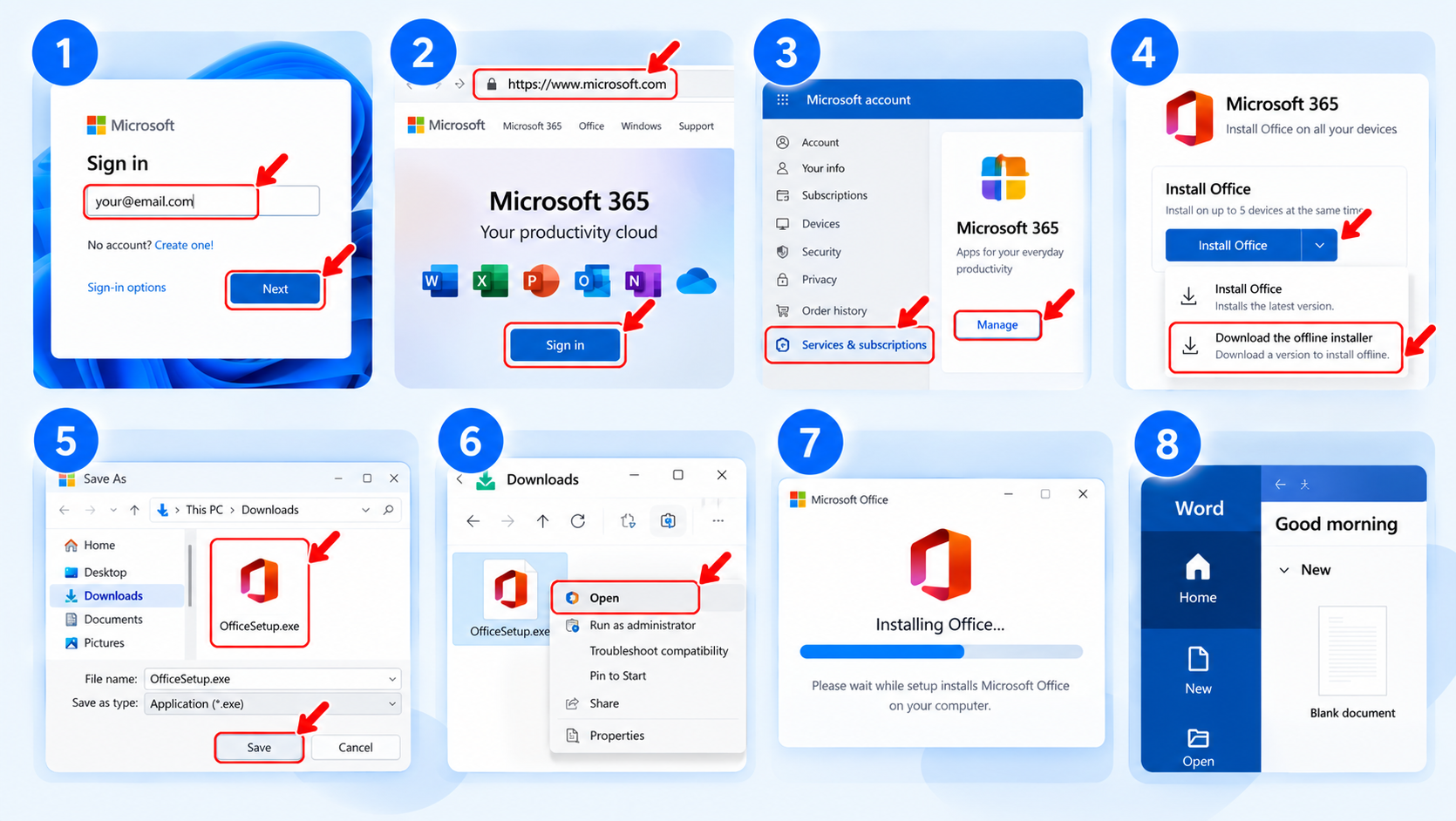
The offline installer downloads the required files first, which can help when the normal online installation is affected by an unreliable connection.
Another common cause of Office installation problems is an architecture conflict.
For example, you may already have a 32-bit Office component installed while attempting to install a 64-bit version.
Microsoft also notes that Office products installed using different installation technologies can conflict on the same PC.
Before reinstalling, check whether you have:
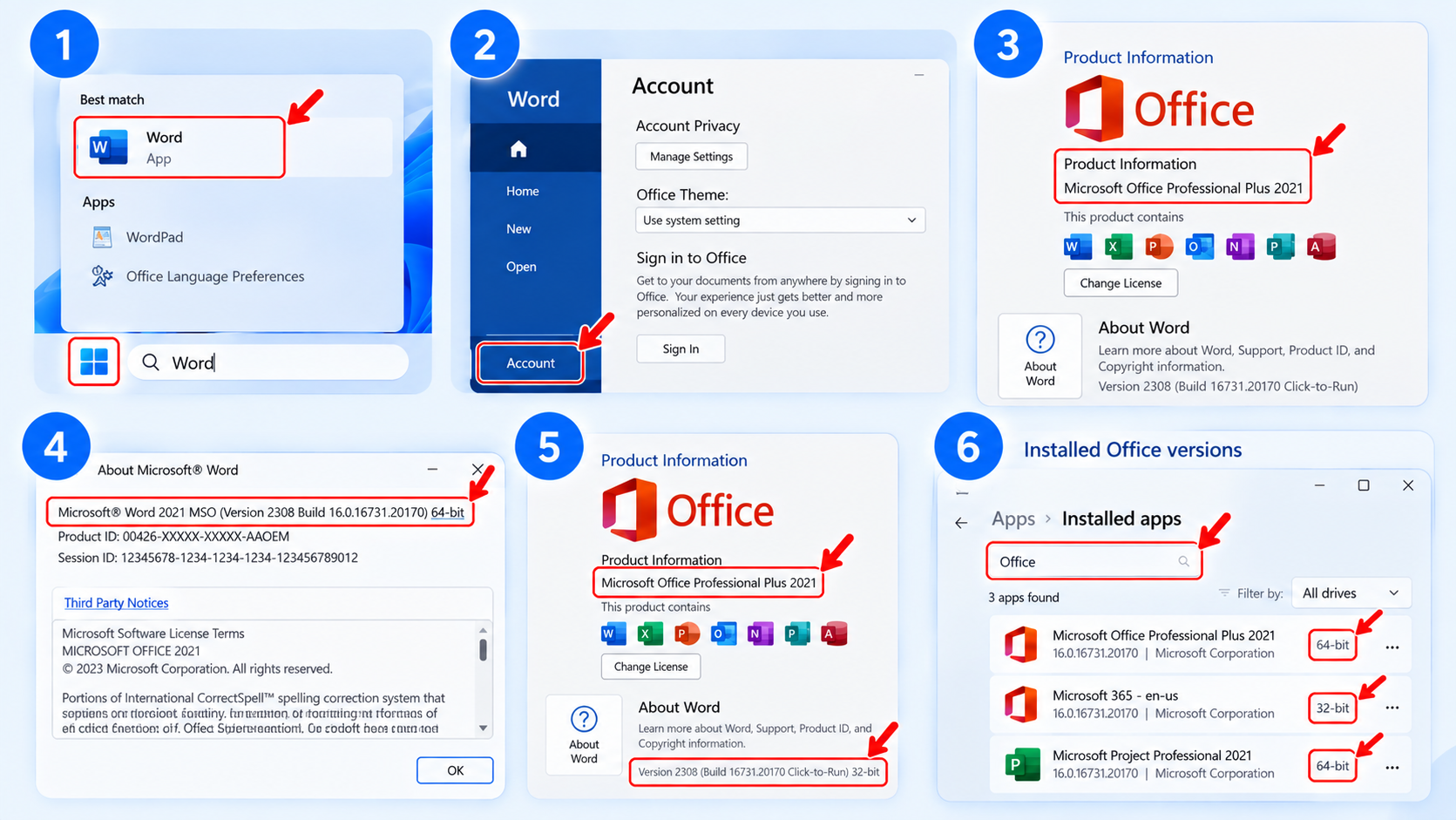
Removing conflicting installations and then installing the correct version can resolve the problem.
If you see an error code during installation, don’t ignore it.
Microsoft maintains troubleshooting documentation for many Office installation errors, including messages such as “Another installation is in progress”, 0-1018, 6-30015, and other installation-related errors.
The exact error code can help identify the cause and determine which solution to try.
For example, errors such as 30183-28 can be related to internet connectivity, antivirus software, firewall settings, or proxy configurations.
Most Microsoft Office installation problems on Windows 11 can be resolved with a few simple checks. Restarting your PC, removing conflicting Office versions, updating Windows, checking your internet and security settings, and using the appropriate installer can often get the installation working again.
If the problem continues, check the exact error message or code and use it to identify the next troubleshooting step. Taking these steps systematically can help you install Office successfully without unnecessary changes to your system.
In this guide, you will learn how to completely remove Adobe Files from Windows & Mac using the recommended uninstall process, Adobe’s official cleanup utility where

Why Your Card Might Be Declining at Checkout? Here Are the Most Common Reasons and How to Fix Them If your payment didn’t go through during