Why Your Card Might Be Declining at Checkout: Common Issues and Simple Solutions
Why Your Card Might Be Declining at Checkout? Here Are the Most Common Reasons and How to Fix Them If your payment didn’t go through during


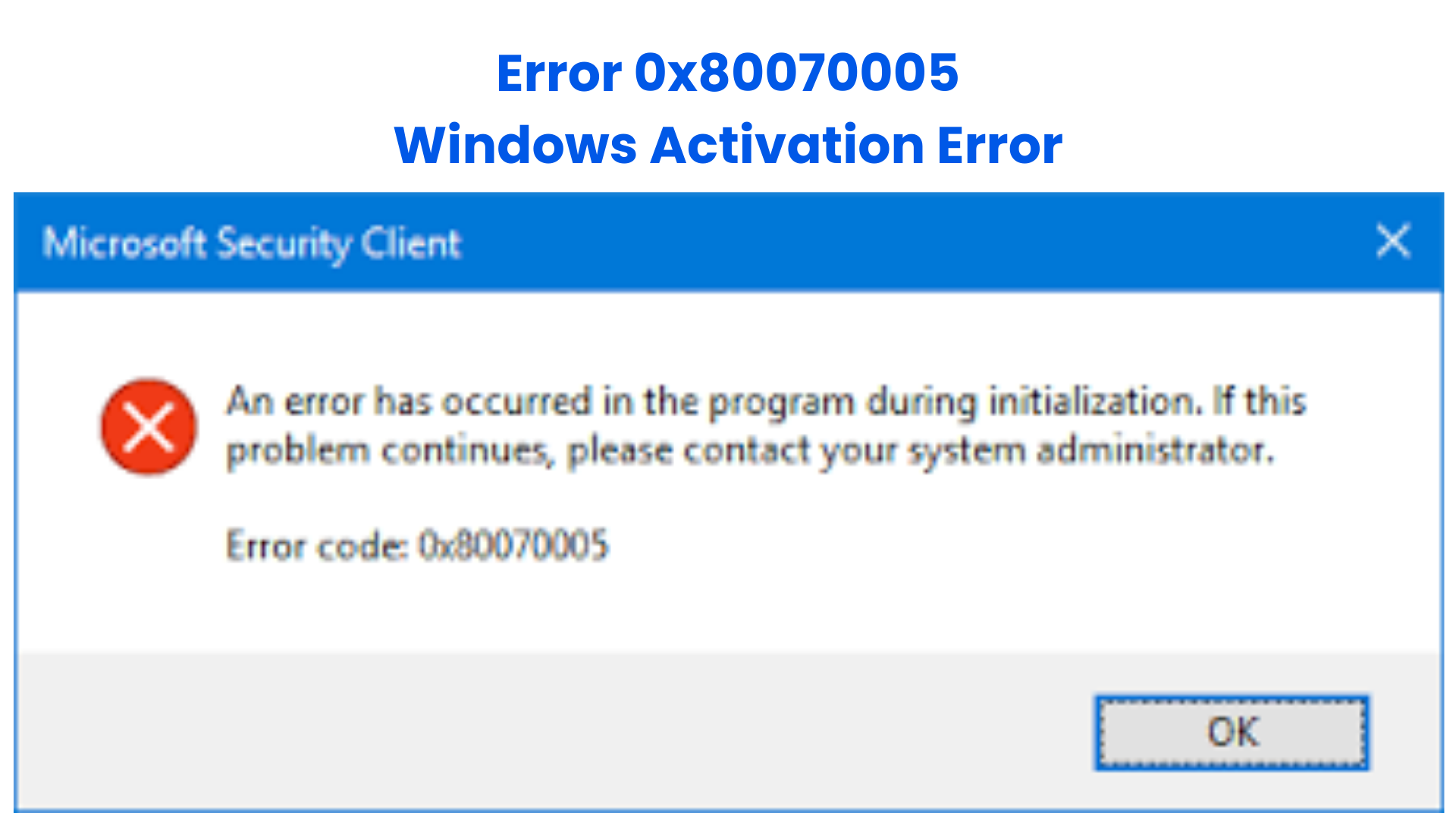
Error 0x80070005 is one of the most common Windows errors users encounter when installing updates, activating Windows, or accessing certain system features. The error message usually appears as “Access Denied”, indicating that the system does not have the required permissions to complete an operation.
This error frequently occurs during Windows Update, Windows activation, or Microsoft Store downloads, and it can prevent your system from installing important security updates or activating Windows properly.
Several issues may trigger Error 0x80070005, including:
Because this error is often related to permissions and system integrity, ensuring your system runs with a genuine Windows license is extremely important. Systems using properly licensed software—such as those purchased from Uractivation—typically experience fewer activation and update conflicts.
In this guide, we will walk through simple step-by-step solutions to fix Error 0x80070005 and restore normal system functionality.
Before fixing the problem, it helps to understand why Error 0x80070005 happens.
The most common causes include:
Understanding these causes will help you choose the most effective fix.
Below are several proven solutions to fix the Error 0x80070005 “Access Denied” problem.
Sometimes Windows cannot perform updates because it lacks the required administrator permissions.
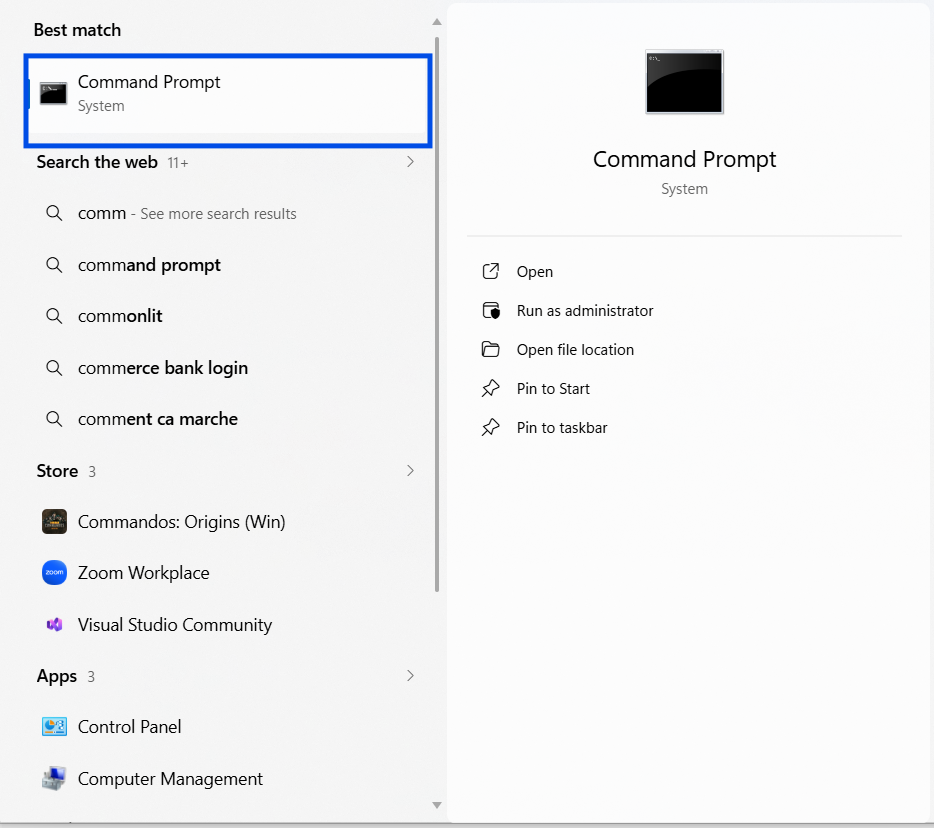
This ensures Windows has full permission to perform system tasks.
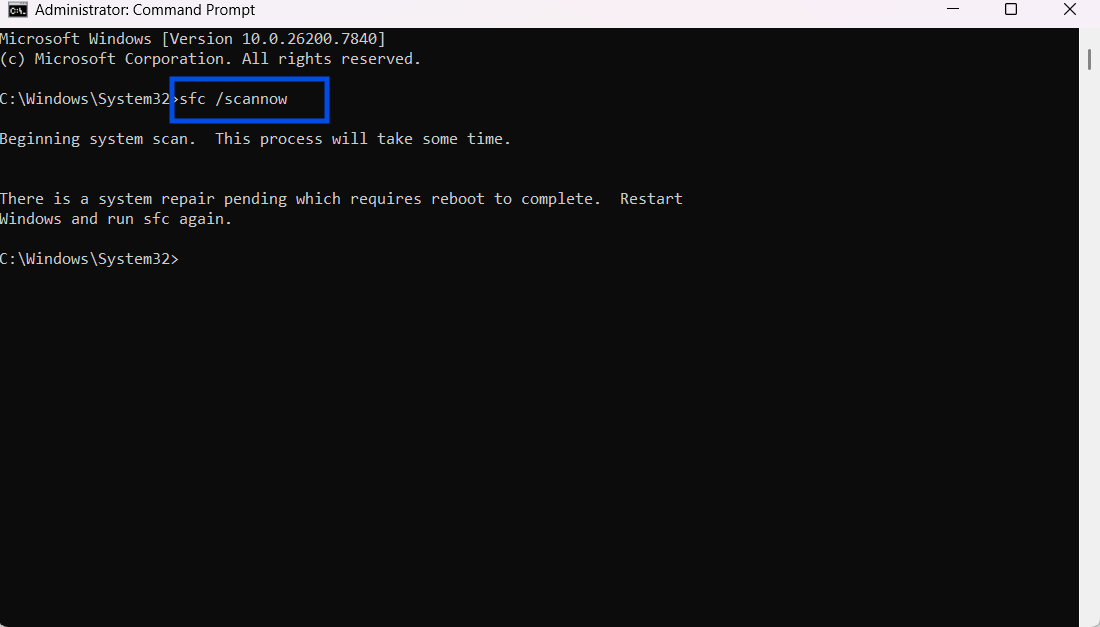
Corrupted or missing system files often trigger Windows errors like 0x80070005.
sfc /scannow
The System File Checker (SFC) will automatically repair damaged system files.
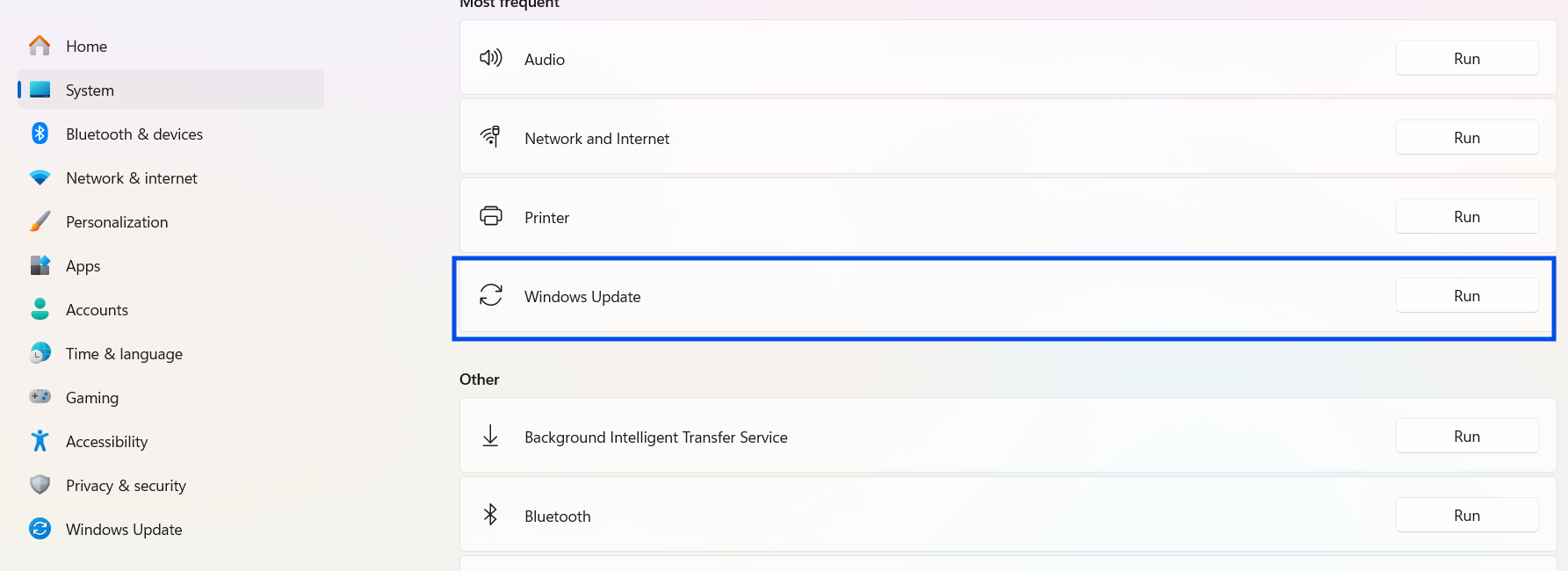
Windows includes a built-in tool designed to detect and repair update problems.
The tool will automatically detect configuration problems and attempt repairs.
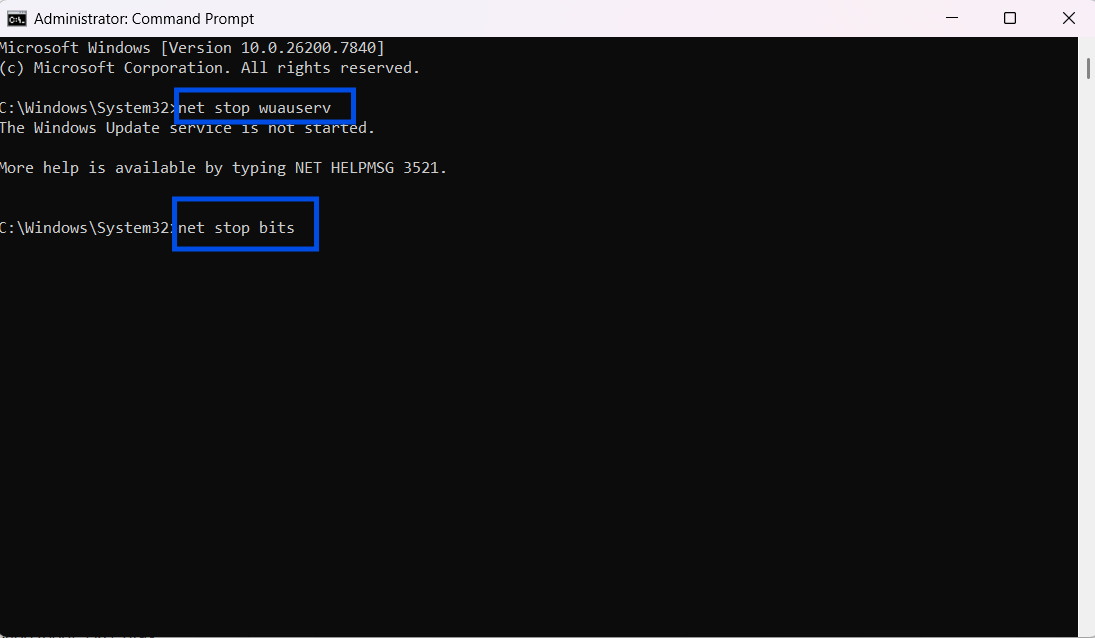
If the update service becomes corrupted, resetting it can fix the error.
net stop wuauserv
net stop bits
net start wuauserv
net start bits
This resets the update system and often resolves Windows Update errors.
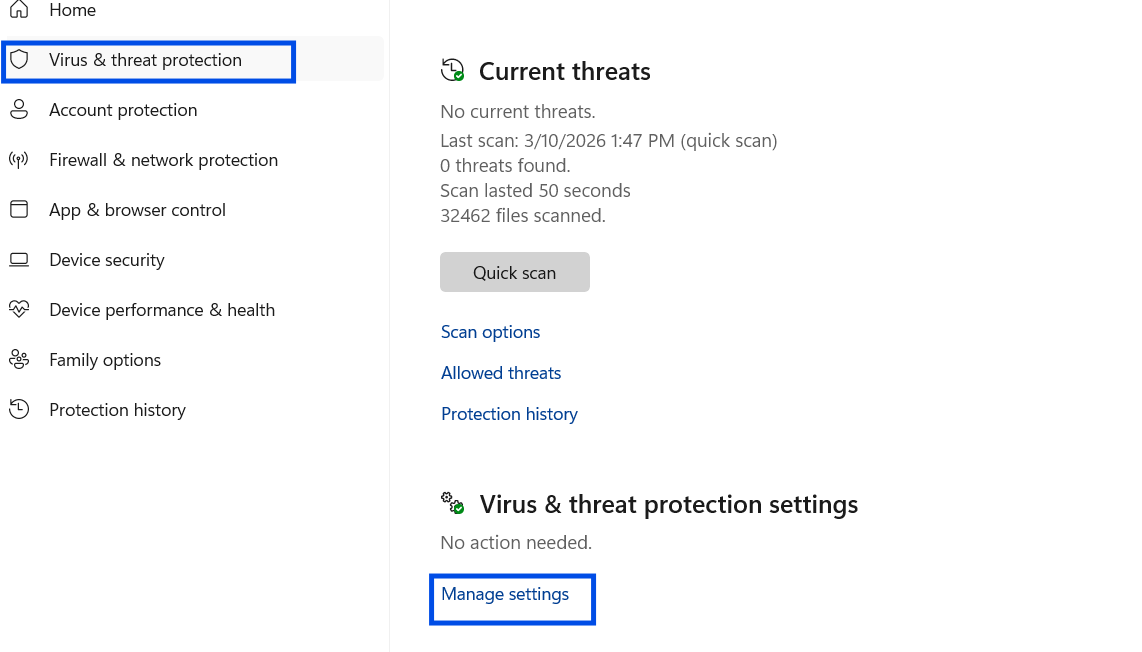
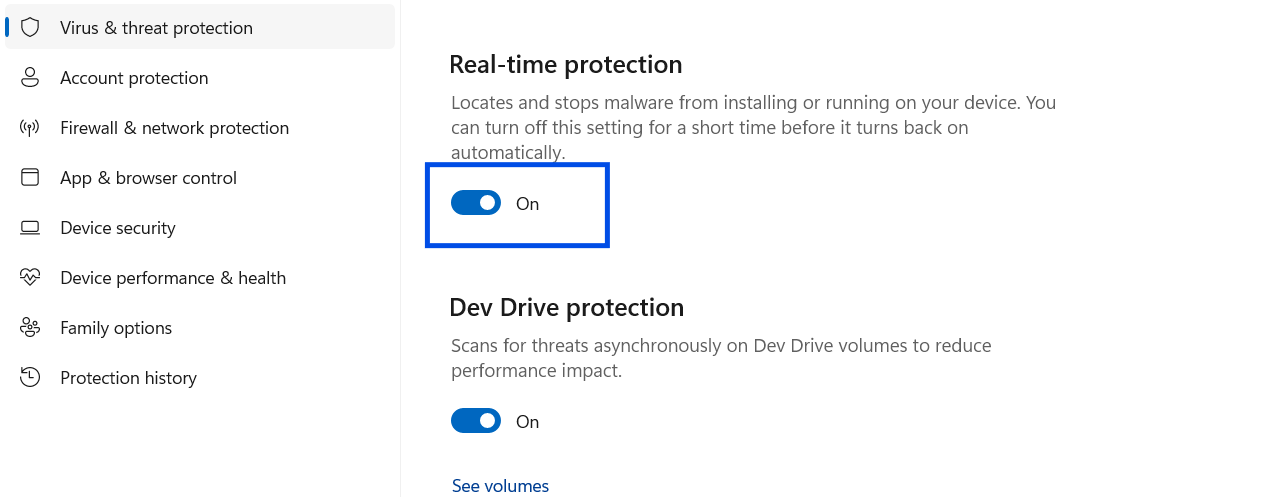
Some antivirus programs mistakenly block Windows update or activation services.
⚠️ Only disable antivirus temporarily and always re-enable it afterward.
Many Windows activation errors, including Error 0x80070005, occur when the operating system cannot properly verify licensing services.
Using a genuine Windows license ensures:
At Uractivation, we provide authentic Microsoft licenses for:
Purchasing genuine software helps maintain system stability, security, and compatibility with updates.
Error 0x80070005 is a common Windows “Access Denied” error that can occur during updates, activation, or system operations. Fortunately, it is fully fixable by following a few key steps:
If the error appears during activation, always ensure your system uses a genuine Windows license from Uractivation. Genuine licenses prevent many activation and permission conflicts, keep your updates working correctly, and provide long-term system stability.
Following the steps in this guide will help you restore full Windows functionality, keep your PC secure, and eliminate Error 0x80070005 efficiently.help you successfully resolve Error 0x80070005 and keep your Windows system running smoothly.
Error 0x80070005 means “Access Denied.” It occurs when Windows does not have the required permissions to perform an operation such as updates, activation, or installing software.
No. The error itself is not harmful, but it may prevent your system from installing important updates or activating Windows properly.
Yes. Using a genuine Windows license helps avoid activation conflicts and ensures Windows services function correctly, reducing the likelihood of errors like 0x80070005.
Sometimes. Certain antivirus programs may block Windows update or activation services, resulting in permission-related errors.
Why Your Card Might Be Declining at Checkout? Here Are the Most Common Reasons and How to Fix Them If your payment didn’t go through during
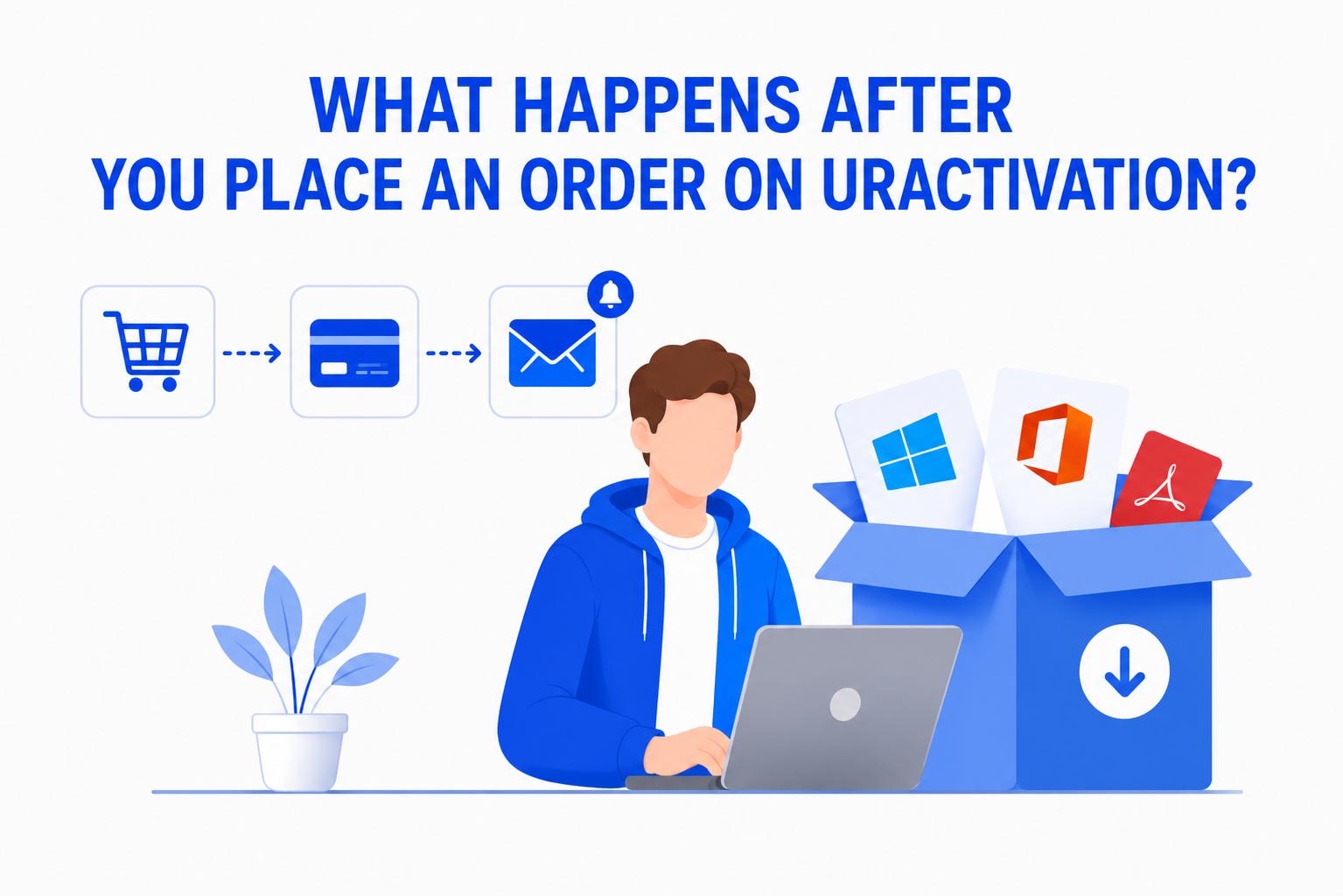
Buying software online should be simple and straightforward. If you’re wondering What Happens After You Place an Order on Uractivation?, this guide walks you through every